


Orchestration
This guide walks you through integrating the SEON Orchestration SDK into your application. You'll learn how to set up backend-to-SEON communication, initialize verification flows, launch the frontend SDK, and handle results via webhooks.
Table of Contents
- Overview
- Prerequisites
- Integration Flow
- Step 1: Backend Integration
- Step 2: Frontend Integration
- Step 3: Webhook Integration
- Testing Your Integration
- Going to Production
- Next Steps
1. Overview
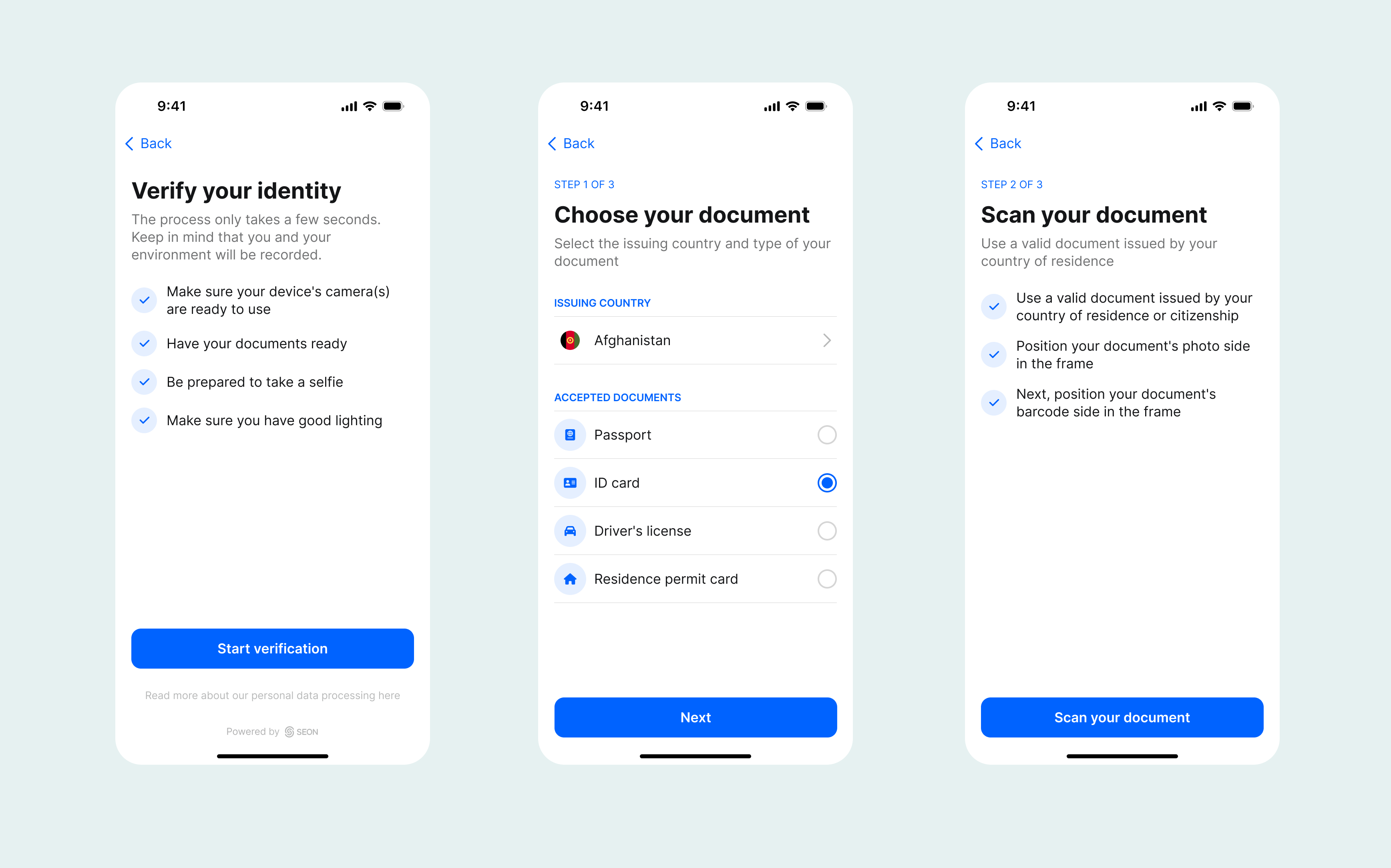
The SEON Orchestration SDK enables you to integrate identity verification workflows into your web application. Workflows can combine document verification, selfie checks, liveness detection, fraud screening, AML checks and eKYC validation in a single orchestrated flow.
How It Works
The integration follows a secure three-party flow:
- Your Frontend: Requests verification from your backend
- Your Backend: Securely calls SEON's Workflow API to get a session token
- SEON SDK: Handles the user-facing verification process
- SEON Webhooks: Delivers final results to your backend


2. Prerequisites
Before you begin, ensure you have:
SEON Account Setup
- A SEON account with Workflows access
- An API key from Admin Panel / Settings / API Keys
- At least one workflow created in Admin Panel / Workflows
Development Environment
- Node.js >=20.0.0 and npm >=7.0.0 (for frontend SDK)
- A backend server (Node.js, Python, Java, etc.)
- HTTPS endpoint for webhooks (required for production)
Browser Requirements
| Browser | Minimum Version |
|---|---|
| Chrome | 96 |
| Safari | 15 |
| Firefox | 79 |
| Opera | 82 |
| iOS Safari | 15 |
| Android Browser | 81 |
| Chrome for Android | 96 |
| Firefox for Android | 79 |

3. Integration Flow
Here's the complete integration sequence:
- User clicks "Verify" button in your app
- Frontend calls your backend API (e.g., POST {your_backend_url}/init-verification)
- Backend calls SEON's POST /v1/init-workflow with:
- Your API key (header)
- Workflow ID
- User inputs (user_id, email, phone, etc.)
- 4. SEON returns { executionId, token }
- Store executionId for correlation
- Return token to frontend
- Frontend initializes SDK with token
- SDK guides user through verification steps (document capture, selfie, liveness, etc.)
- SDK fires completion events (success/pending/failed)
- Update UI accordingly
- SEON sends webhook to your backend with final results
- Update user status in your database
4. Step 1: Backend Integration
Your backend acts as a secure bridge between your frontend and SEON's API. It:
- Keeps your API key secret
- Initializes workflow sessions
- Stores execution IDs for result correlation
- Receives webhook notifications
4.1 Environment Setup
Set these environment variables:
SEON_API_KEY=your_api_key_here
SEON_BASE_URL=see_production_urls_below
WORKFLOW_ID=your_workflow_uuid
SEON_WEBHOOK_SECRET=your_webhook_secret  # For signature verification
4.2 Create an Init Endpoint
Create an endpoint that your frontend will call to start verification:
Node.js (Express)
const express = require('express');
const app = express();
app.use(express.json());

const SEON_API_KEY = process.env.SEON_API_KEY;
const SEON_BASE_URL = process.env.SEON_BASE_URL;
const WORKFLOW_ID = process.env.WORKFLOW_ID;

app.post('/api/init-verification', async (req, res) => {
  const { userId, email, phoneNumber } = req.body;

  try {
    const response = await fetch(`${SEON_BASE_URL}/v1/init-workflow`, {
      method: 'POST',
      headers: {
        'Content-Type': 'application/json',
        'x-api-key': SEON_API_KEY,
      },
      body: JSON.stringify({
        workflowId: WORKFLOW_ID,
        inputs: {
          user_id: userId,
          email: email,
          phone_number: phoneNumber,
        },
      }),
    });

    if (!response.ok) {
      const error = await response.json();
      return res.status(response.status).json({ error: error.message });
    }

    const { data } = await response.json();

    // Store executionId for webhook correlation
    await storeExecutionId(userId, data.executionId);

    // Return only the token to frontend
    res.json({ token: data.token });
  } catch (error) {
    console.error('Failed to initialize workflow:', error);
    res.status(500).json({ error: 'Failed to initialize verification' });
  }
});
Python (Flask)
import os
import requests
from flask import Flask, request, jsonify

app = Flask(__name__)

SEON_API_KEY = os.environ.get('SEON_API_KEY')
SEON_BASE_URL = os.environ.get('SEON_BASE_URL')
WORKFLOW_ID = os.environ.get('WORKFLOW_ID')

@app.route('/api/init-verification', methods=['POST'])
def init_verification():
    data = request.get_json()

    response = requests.post(
        f'{SEON_BASE_URL}/v1/init-workflow',
        headers={
            'Content-Type': 'application/json',
            'x-api-key': SEON_API_KEY,
        },
        json={
            'workflowId': WORKFLOW_ID,
            'inputs': {
                'user_id': data.get('userId'),
                'email': data.get('email'),
                'phone_number': data.get('phoneNumber'),
            },
        },
    )

    if not response.ok:
        return jsonify({'error': response.json().get('message')}), response.status_code

    result = response.json()['data']

    # Store executionId for webhook correlation
    store_execution_id(data.get('userId'), result['executionId'])

    return jsonify({'token': result['token']})
4.3 Required Inputs
The inputs required depend on your workflow configuration:
| Workflow Type | Required Inputs |
|---|---|
| Document + Selfie (basic) | user_id |
| Email + Phone fraud check | user_id, email, phone_number |
| AML screening | user_id, user_fullname |
| Face match with reference | user_id, reference_image |
4.4 Error Handling
Handle these common API errors:
| HTTP Status | Error Code | Solution |
|---|---|---|
| 400 | MISSING_REQUIRED_INPUTS | Check your workflow config for required fields |
| 401 | UNAUTHORIZED | Verify your API key is correct |
| 404 | WORKFLOW_NOT_FOUND | Check workflow ID exists and is active |
| 429 | RATE_LIMITED | Implement exponential backoff |
5. Step 2: Frontend Integration
Once your backend returns a token, use the Orchestration SDK to launch the verification flow.
5.1 Install the SDK
npm install @seontechnologies/seon-orchestration
# or
yarn add @seontechnologies/seon-orchestration
5.2 Basic Implementation
Minimal Example
import { SeonOrchestration } from '@seontechnologies/seon-orchestration';

async function startVerification(userId) {
  // 1. Get token from your backend
  const response = await fetch('/api/init-verification', {
    method: 'POST',
    headers: { 'Content-Type': 'application/json' },
    body: JSON.stringify({ userId }),
  });
  const { token } = await response.json();

  // 2. Start the verification flow
  await SeonOrchestration.start({ token });
}
With Event Handling
import { SeonOrchestration } from '@seontechnologies/seon-orchestration';

// Set up event listeners (do this once on page load)
SeonOrchestration.on('completed', (status) => {
  // status: 'success' | 'pending' | 'failed' | 'unknown'
  console.log('Verification completed:', status);

  if (status === 'success') {
    showSuccessMessage();
  } else if (status === 'pending') {
    showPendingMessage();
  } else {
    showFailureMessage();
  }
});

SeonOrchestration.on('error', (errorCode) => {
  console.error('Verification error:', errorCode);
  showErrorMessage(errorCode);
});

SeonOrchestration.on('cancelled', () => {
  console.log('User cancelled verification');
});

// Start verification function
async function startVerification(userId) {
  try {
    const response = await fetch('/api/init-verification', {
      method: 'POST',
      headers: { 'Content-Type': 'application/json' },
      body: JSON.stringify({ userId }),
    });

    if (!response.ok) {
      throw new Error('Failed to initialize verification');
    }

    const { token } = await response.json();

    await SeonOrchestration.start({
      token,
      language: 'en',
      renderingMode: 'fullscreen',
    });
  } catch (error) {
    console.error('Failed to start:', error);
  }
}
5.3 React Integration
import { useEffect, useState } from 'react';
import { SeonOrchestration, CompletionTypes, ErrorCodes } from '@seontechnologies/seon-orchestration';

export function VerificationButton({ userId, onComplete, onError }) {
  const [isLoading, setIsLoading] = useState(false);

  useEffect(() => {
    const handleCompleted = (status: CompletionTypes) => {
      setIsLoading(false);
      onComplete(status);
    };

    const handleError = (errorCode: ErrorCodes) => {
      setIsLoading(false);
      onError(errorCode);
    };

    SeonOrchestration.on('completed', handleCompleted);
    SeonOrchestration.on('error', handleError);
    SeonOrchestration.on('closed', () => setIsLoading(false));

    return () => {
      SeonOrchestration.off('completed', handleCompleted);
      SeonOrchestration.off('error', handleError);
      SeonOrchestration.off('closed', () => setIsLoading(false));
    };
  }, [onComplete, onError]);

  const startVerification = async () => {
    setIsLoading(true);

    try {
      const response = await fetch('/api/init-verification', {
        method: 'POST',
        headers: { 'Content-Type': 'application/json' },
        body: JSON.stringify({ userId }),
      });
      const { token } = await response.json();

      await SeonOrchestration.start({ token, language: 'en' });
    } catch (error) {
      onError('init_failed');
    } finally {
      setIsLoading(false);
    }
  };

  return (
    <button onClick={startVerification} disabled={isLoading}>
      {isLoading ? 'Starting...' : 'Verify Identity'}
    </button>
  );
}
5.4 Configuration Options
| Option | Type | Default | Description |
|---|---|---|---|
| token | string | required | Session token from your backend |
| language | string | en | UI language code |
| renderingMode | string | fullscreen | fullscreen, inline, or popup |
| containerId | string | — | DOM element ID (required for inline mode) |
| theme | object | — | Custom branding configuration |
5.5 Rendering Modes
Fullscreen (Default) — Best for mobile and single-purpose flows
await SeonOrchestration.start({
  token,
  renderingMode: 'fullscreen'
});
Popup — Opens in a new window, keeps main UI visible
await SeonOrchestration.start({
  token,
  renderingMode: 'popup'
});
Inline — Embeds within your page layout
<div id="verification-container" style="min-height: 600px;"></div>await SeonOrchestration.start({
token,
renderingMode: 'inline',
containerId: 'verification-container'
});5.6 SDK Events
| Event | Callback | Description |
|---|---|---|
| opened | () => void | SDK UI opened |
| started | () => void | Verification process started |
| completed | (status) => void | Verification finished (success, pending, failed, unknown) |
| cancelled | () => void | User cancelled |
| error | (errorCode) => void | Error occurred |
| closed | () => void | SDK UI closed |
6. Step 3: Webhook Integration
While SDK events provide immediate feedback, webhooks deliver the authoritative final result. Always use webhooks to update your database.
6.1 Workflow & IDV Webhook Events
Subscribe to these events in Admin Panel / Settings / Webhooks:
| Event | Description |
|---|---|
orchestration/workflow_execution_finished | Workflow execution completed (any terminal status) |
orchestration/workflow_execution_updated | Workflow status manually changed by admin |
idv/session_finished | IDV session completed with detailed check results |
6.2 Workflow Execution Payload
{
  "event": "orchestration/workflow_execution_finished",
  "timestamp": "2025-01-12T14:30:00Z",
  "data": {
    "id": "a1b2c3d4-e5f6-7890-1234-567890abcdef",
    "workflow": {
      "id": "550e8400-e29b-41d4-a716-446655440000",
      "name": "KYC Onboarding Flow"
    },
    "status": "APPROVED"
  }
}
Workflow Status Values
| Status | Description |
|---|---|
APPROVED | User passed all checks |
REVIEW | Requires manual review |
DECLINED | User failed verification |
EXPIRED | Session timed out |
ERROR | System error occurred |
6.3 IDV Session Payload
The idv/session_finished event includes detailed check results:
{
  "event": "idv/session_finished",
  "timestamp": "2025-01-12T14:30:00Z",
  "data": {
    "status": "APPROVED",
    "sessionId": "a1b2c3d4-e5f6-7890-1234-567890abcdef",
    "executionId": "f0e9d8c7-b6a5-4321-fedc-ba9876543210",
    "userId": "user-98765",
    "documentCheckResult": {
      "overallResult": "APPROVED",
      "documentValidityCheckResult": "PASSED",
      "imageQualityCheckResult": "PASSED"
    },
    "documentCheckExtractedData": {
      "fullName": "Jane Doe",
      "birthDate": "1990-05-15",
      "documentType": "PASSPORT",
      "country": "US"
    },
    "selfieVerificationResult": {
      "overallResult": "APPROVED",
      "livenessCheckResult": "PASSED",
      "faceMatchingResult": "PASSED"
    }
  }
}7. Testing Your Integration
7.1 Development Checklist
- Backend endpoint returns token successfully
- Frontend SDK launches without errors
- SDK events fire correctly (opened, started, completed, closed)
- Webhook endpoint receives and verifies payloads
- Database updates correctly based on webhook status
7.2 Debugging Tips
Store execution IDs for correlation:
const { executionId, token } = data;
console.log(`Started verification: execution ${executionId}`);
// Store executionId alongside userId in your database
Log all SDK events during development:
['opened', 'closed', 'started', 'completed', 'cancelled', 'error'].forEach(event => {
  SeonOrchestration.on(event, (...args) => {
    console.log(`[SEON] ${event}:`, ...args);
  });
});
Review in Admin Panel:
- Go to Transactions / Workflow Runs
- Search by user_id or executionId
- View step-by-step execution details
7.3 Common Issues
| Issue | Cause | Solution |
|---|---|---|
| "IDV flow is already running" | Called start() twice | Wait for flow to complete or call close() first |
| 401 on init-workflow | Invalid API key | Check x-api-key header |
| Webhook not received | Endpoint not HTTPS | Use HTTPS in production |
| Duplicate webhooks | Normal behavior | Implement idempotency handling |
8. Going to Production
8.1 Pre-Launch Checklist
- Switch to production API URL (contact SEON for access)
- Update API keys to production keys
- Configure production webhook URL (HTTPS required)
- Test complete flow end-to-end
- Set up monitoring and alerting
- Implement proper error handling and logging
8.2 Security Checklist
- API key stored in environment variables (never in code)
- Webhook signature verification enabled
- HTTPS used for all endpoints
- Rate limiting implemented on your endpoints
- Input validation on all user-provided data
9. Next Steps
Documentation Links
- Workflow API Reference — Complete request/response details, all input fields
- SDK API Reference — Configuration, theming, localization, error codes
- Webhook Reference — All event types, payload structures, retry logic
Additional Topics
- Theming & Branding — Customize colors, fonts, and logos
- Localization — Support multiple languages
- eKYC Integration — Country-specific identity verification
- AML Screening — Anti-money laundering checks
- Troubleshooting — Common issues and solutions
For Additional support, contact your SEON representative.