


User Management
You can easily invite your colleagues to join your SEON team if you go to the Members tab of the Settings page from the Admin panel. Click Invite in the top right corner, then type in their name and email address.
You can decide to only give them access to the Sandbox environment, which means that they won’t be able to access live data but can test rules and automations set up in your SEON account.
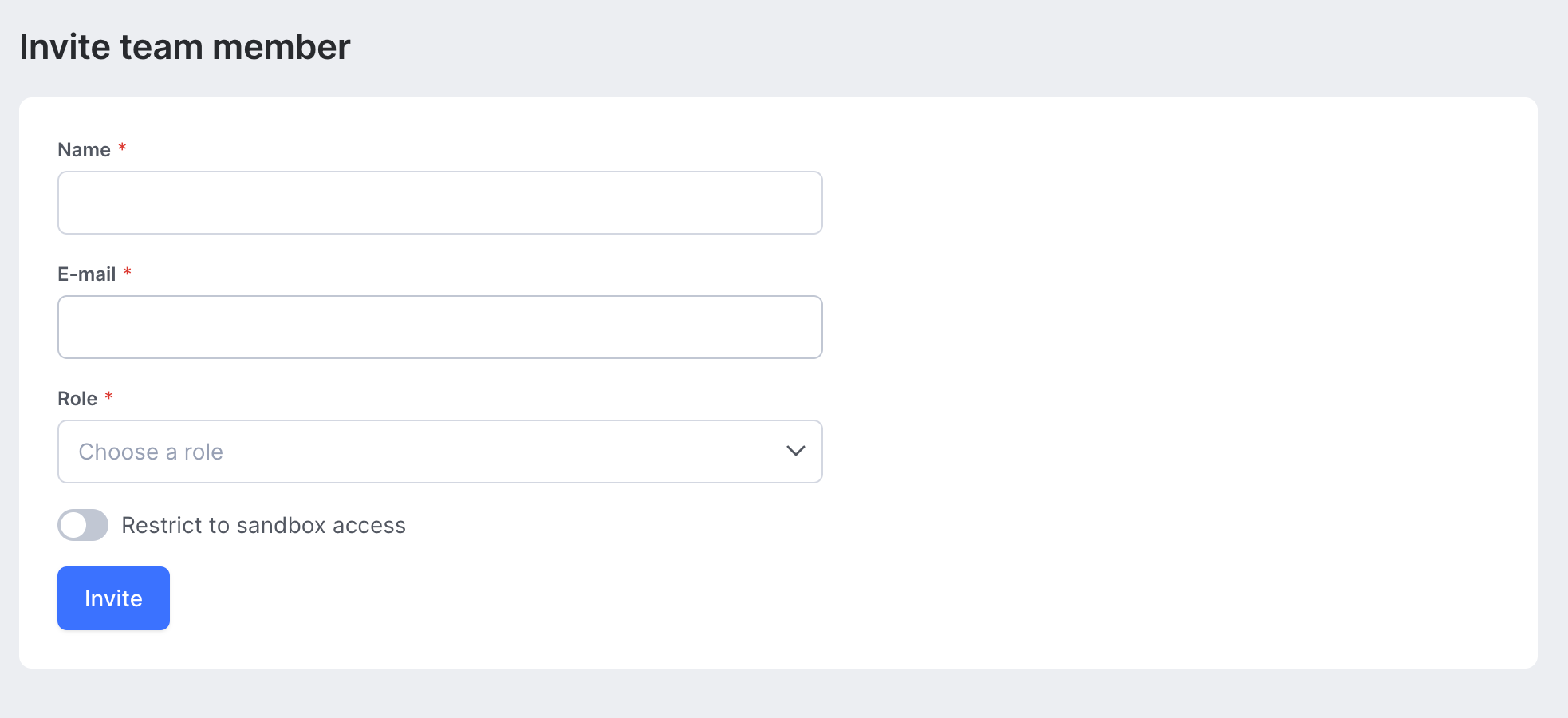
You also need to assign the invited colleague a specific User Role before sending them the email invite. What’s a User Role, you may ask? Getting there in just a second.
Setting up permissions and roles
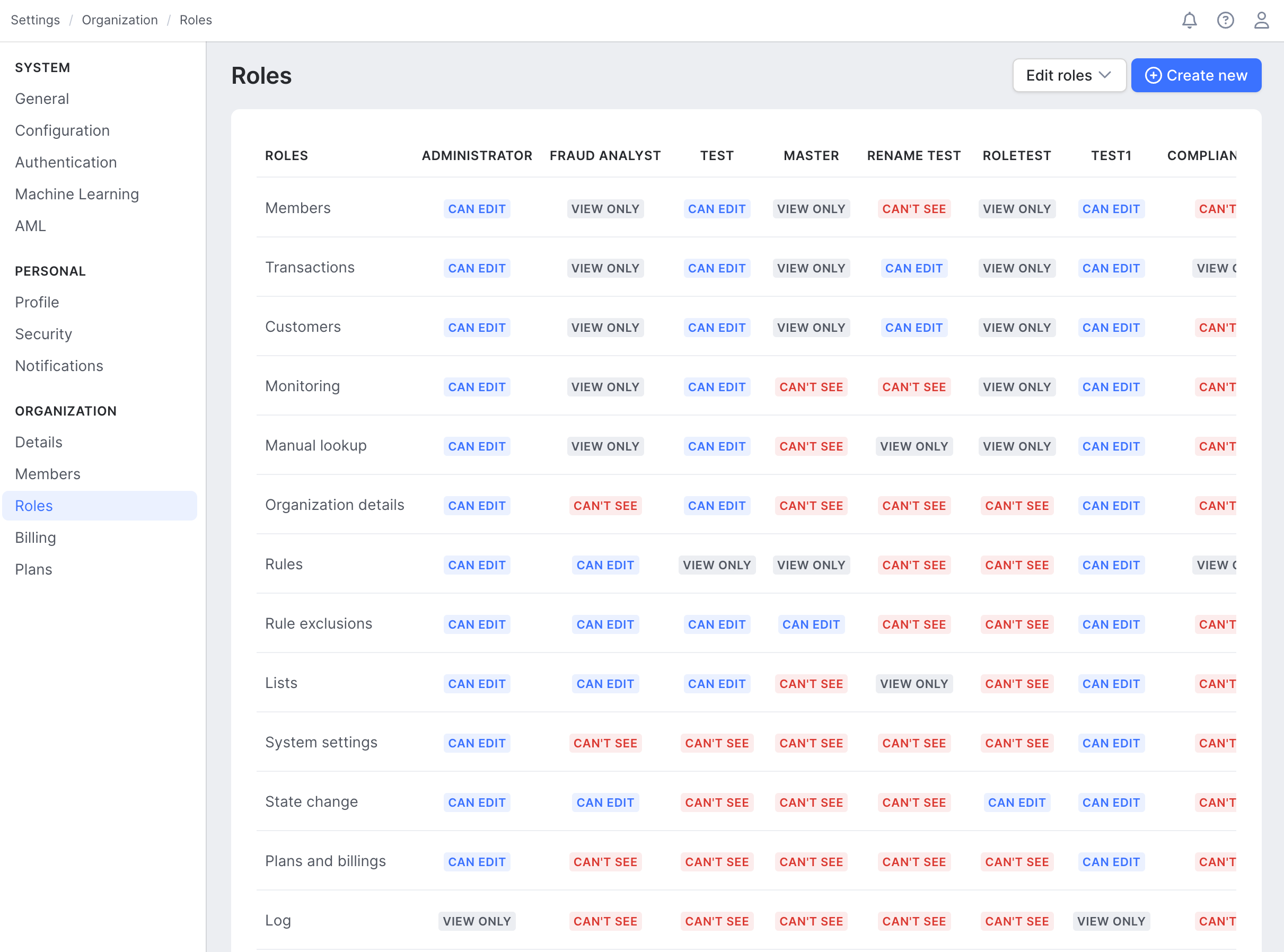
As a team admin, you need to assign users a user role within the SEON platform. By default, there are two user roles in SEON: Administrator and Fraud Analyst. While the Administrator and Fraud Analyst roles’ permission levels cannot be modified, you can create and edit additional user roles within the Role Groups tab by clicking either the “Edit role groups” or the “Add new role group” button at the top right corner.
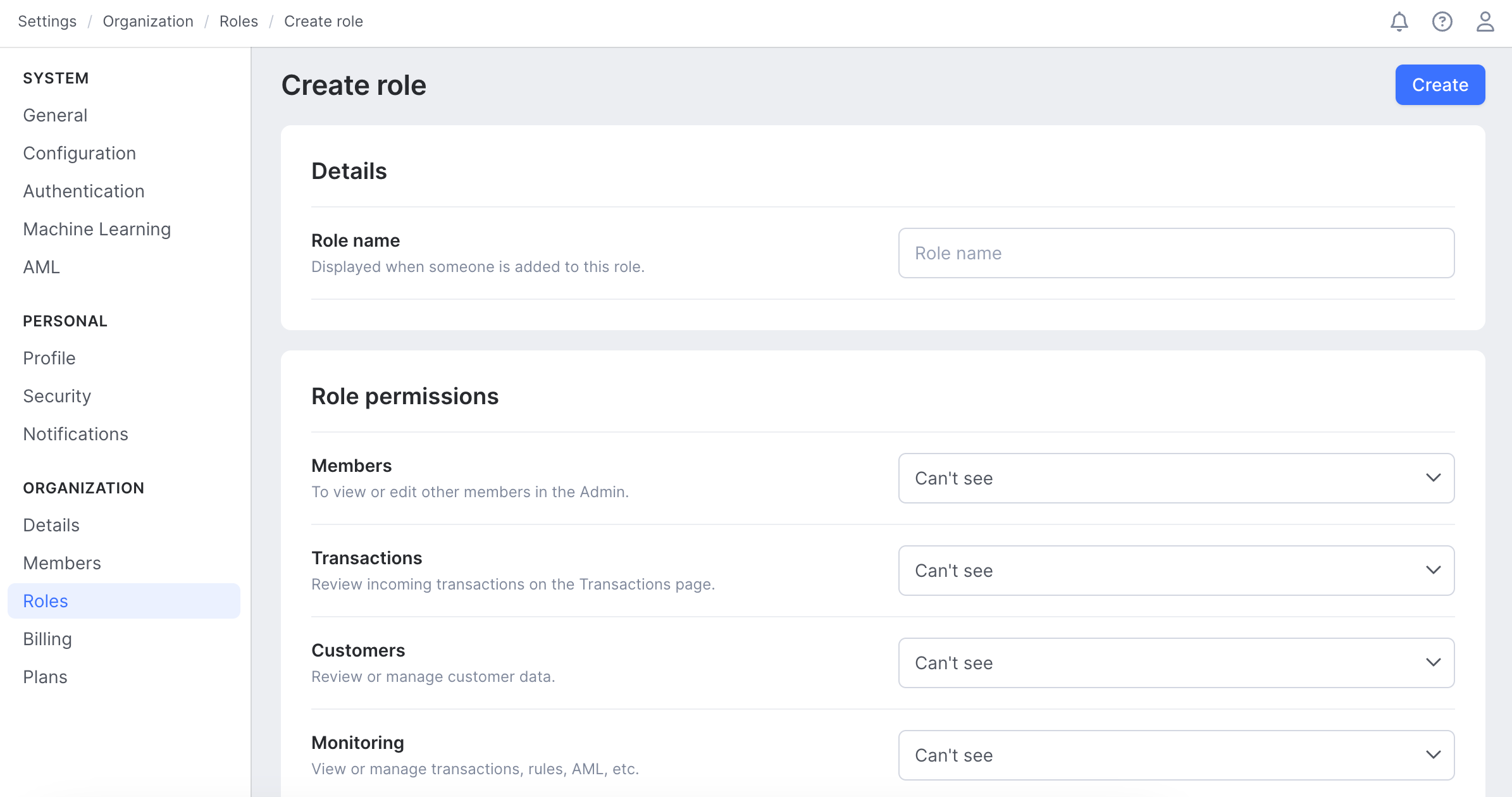
These additional roles can have granular permission levels set against a range of areas in the system, and each area can be set to either Can Edit, View only, or Can't see.
Security and authentication options
As an Administrator, you can access the account security settings on the Settings page from the Admin panel. Under the Security tab, you can update the account password and enable Two-factor authentication (2FA) for the entire team using the toggle.