


Four-eye principle

Updated on 17.03.26

2 minutes to read

Copy link
Overview
The four-eye principle is a safety and governance feature in SEON that helps prevent accidental or unauthorized changes to high-impact actions.
When the four-eye principle is enabled, certain sensitive changes require approval from a designated second user. This reduces the risk of misconfiguration or malicious changes, creates a clear audit trail and helps teams safely scale and operate fraud rules with confidence.
How it works
When a user makes a change that requires approval, the system saves it as a proposal instead of applying it immediately. The original configuration remains unchanged, while the proposal captures both the current and proposed values.
Relevant users are notified so they can review exactly what would change. A different user must then approve or decline the proposal, and every action is logged to ensure a clear audit trail.
Supported actions
Rules
- Creating, editing, or deleting rules
- Changing rule status (on/off)
- Updating rule conditions, actions, scoring, or decision outcomes
Lists
- Adding or removing values from lists
- Moving values between lists
- Deleting list entries
- Changing list item expiration dates
Enabling the four-eye principle
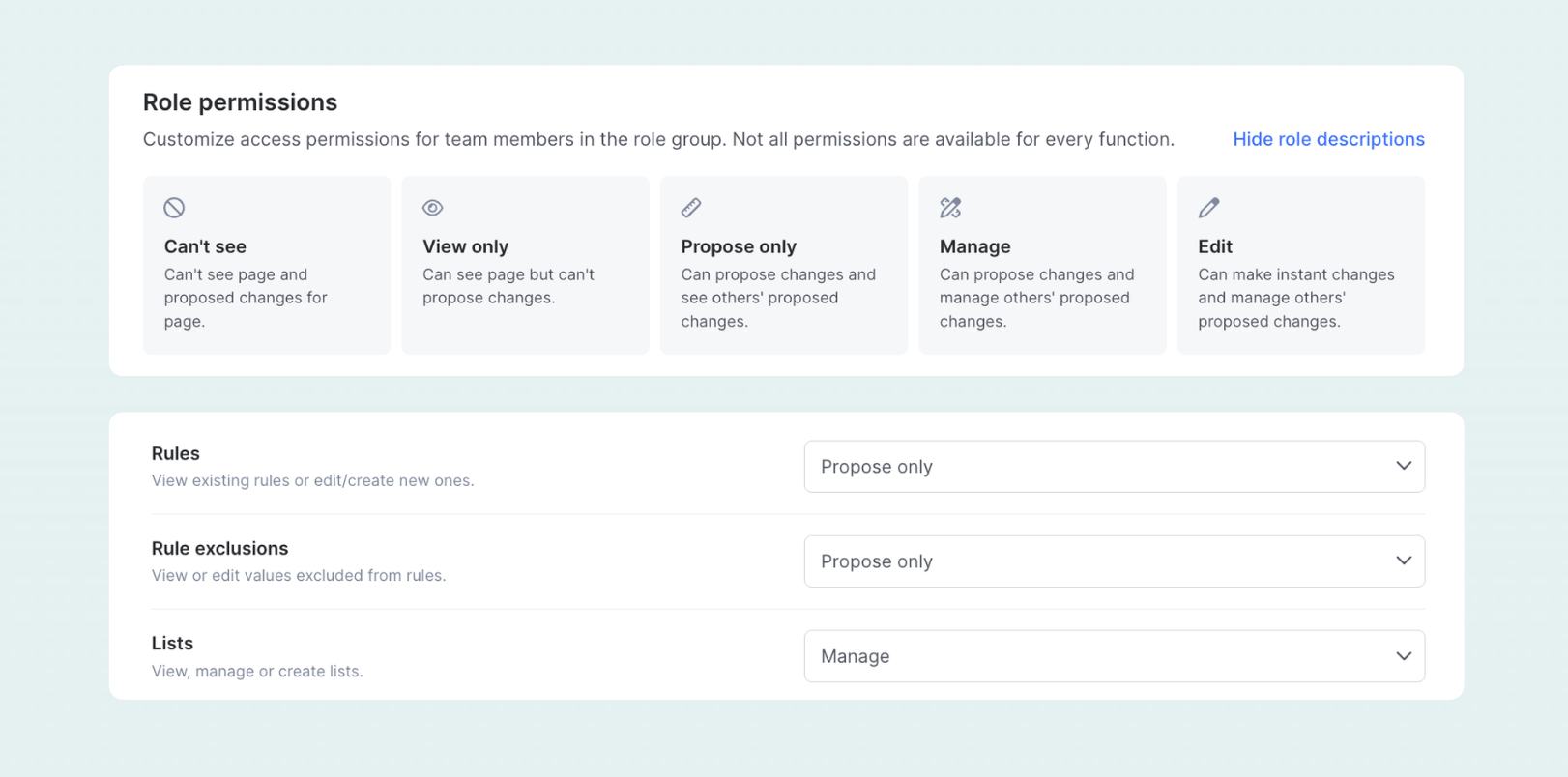
Assign propose-only or manage permissions to a role to automatically trigger the four-eye principle. Any changes made by users with these permissions are saved as proposals and require approval before they take effect.
- Propose-only is suitable when you don’t want users to directly modify a functionality at all, they can only suggest changes.
- Manage is appropriate when users are allowed to make changes, but those changes cannot be applied without review and approval from another colleague with the same level of permission.
How to use it
1. Propose a change
When someone makes a change that requires approval:
- The change is saved as a proposal
- The original configuration remains unchanged
- The proposal includes both the current and proposed values
- The relevant members will receive notifications
2. Review the proposal
All pending proposals appear on the Logs page under Proposed changes.
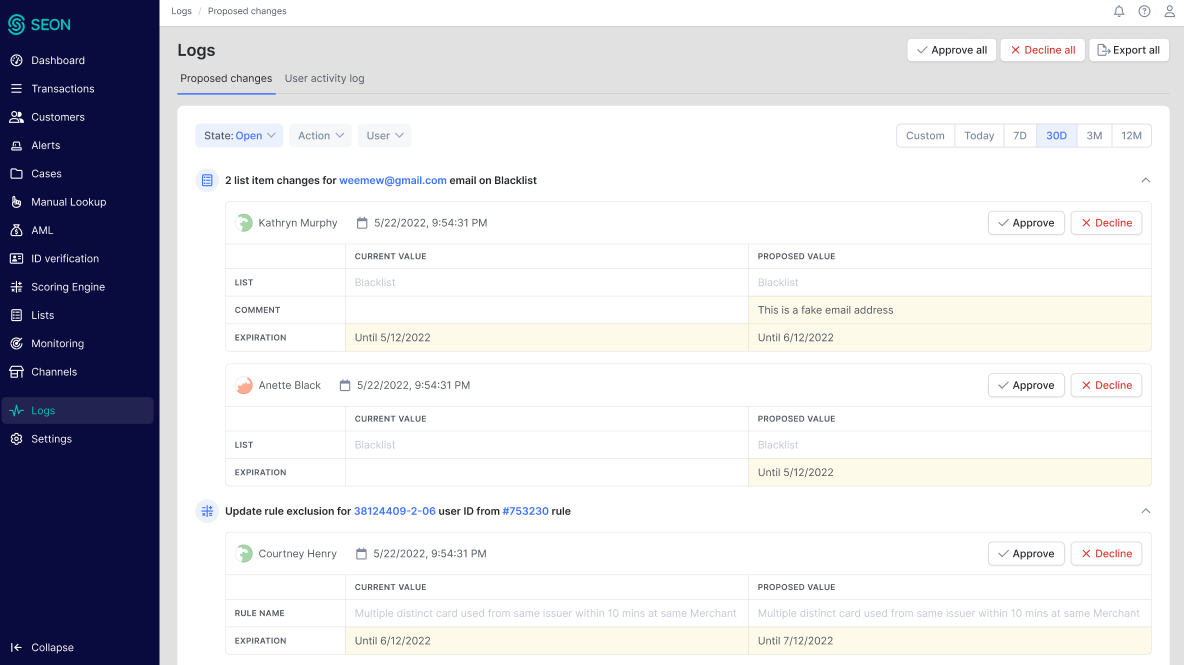
Reviewers can:
- See exactly what will change
- Compare current and proposed values
- Check who proposed the change and when
- Proposals can be filtered by status, time, user or action type and multiple proposals can be approved or declined in bulk.
3. Approve or decline
A different member must review the proposal and choose to:
- Approve: the change is applied
- Decline: the change is discarded
The member who proposed the change cannot approve their own proposal.
4. Audit logging
All actions are logged, including:
- Who proposed the change
- Who approved or declined it
- When the action happened
- What configuration was affected
These logs remain available for auditing and review.