


Course correction and retries

Updated on 13.03.26

1 minute to read

Copy link
Overview
When a user struggles during verification, SEON handles it in two ways: course correction guides the user in real time so they can self-correct before their next attempt, while retry logic controls how many attempts are allowed before the session is invalidated.
Together, these mechanisms help legitimate users complete verification successfully while limiting opportunities for fraudulent activity.
What is course correction?
Course correction is the real-time, on-screen guidance shown to users when the system detects a problem with a capture attempt. Rather than triggering a silent retry, course correction gives users specific, actionable instructions so they can resolve the issue themselves.
General
The following prompts apply across all capture types:
- Move closer
- Ensure good lighting
- Clean camera lens
Document verification
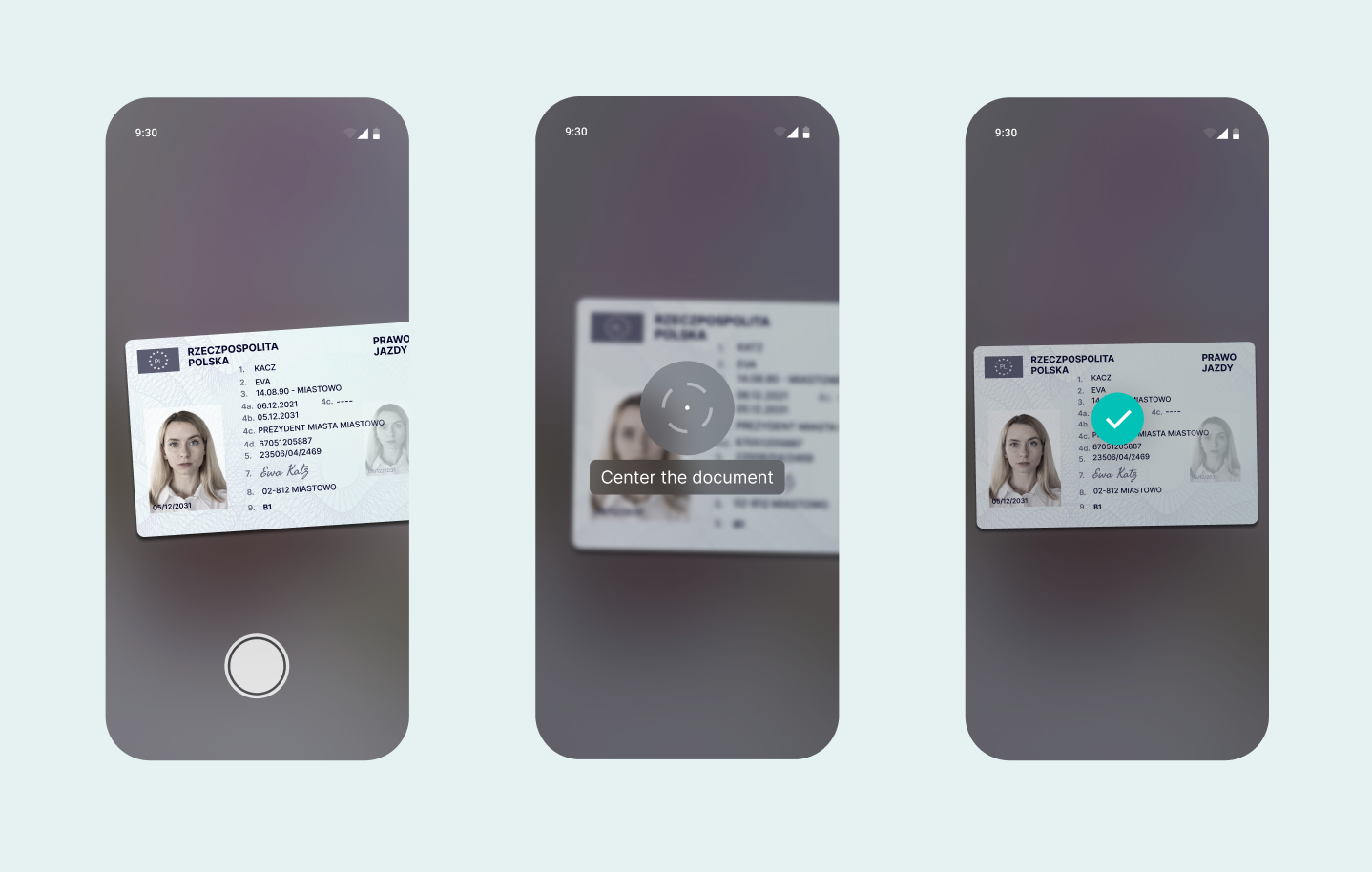
During document scanning, SEON provides real-time visual feedback to guide the user into capturing a clear image:
- Move closer: Camera is too far from the document
- Move further away: Camera is too close to the document
- Adjust angle: Camera angle relative to the document is too steep
- Center the document: Document is too close to the edge of the frame
If the document cannot be detected at all, the user is prompted to reposition it.
Liveness check
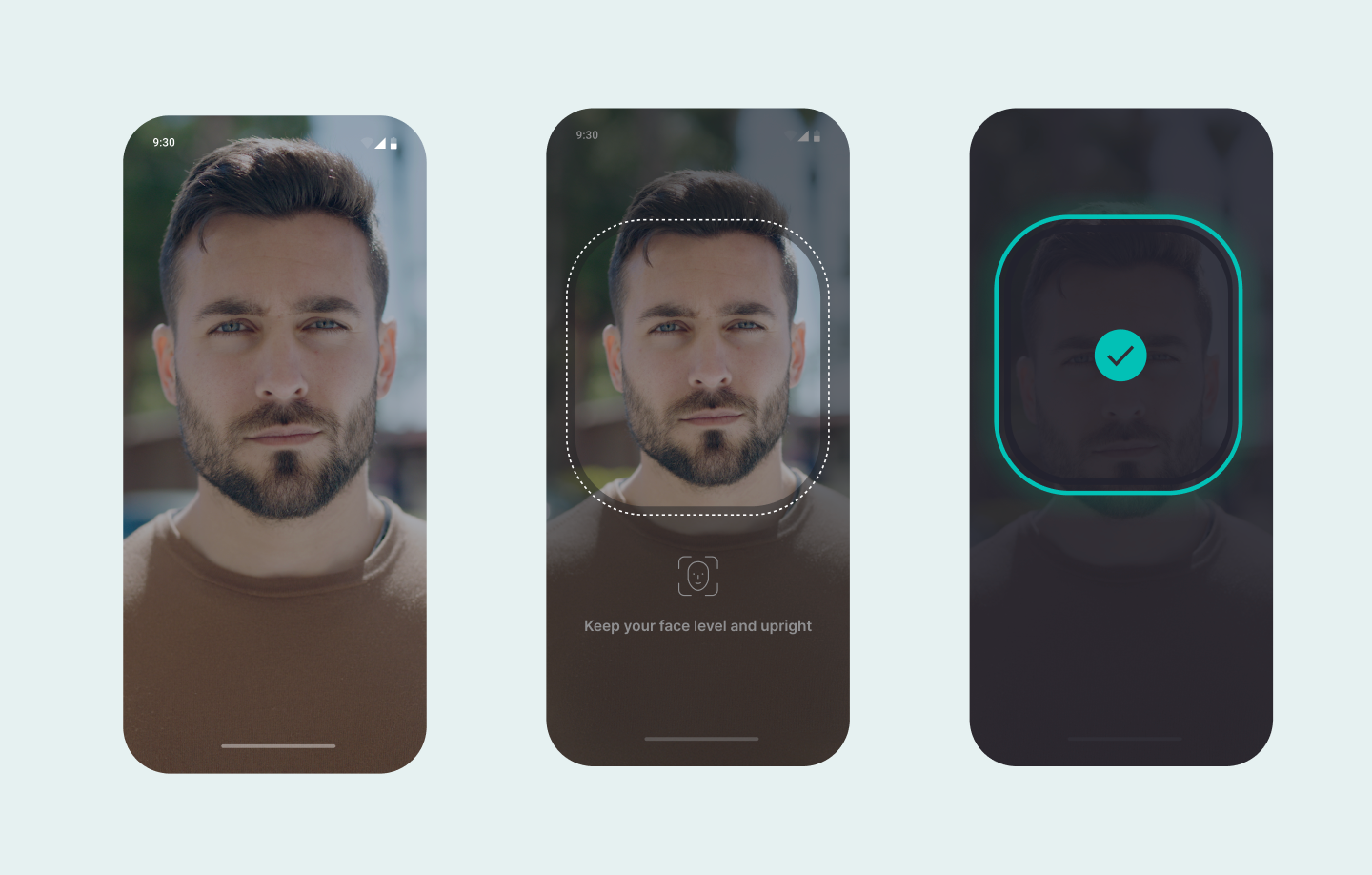
On-screen real-time guidance helps users position their face correctly:
- Position your face in the frame: No face detected
- Align your face with the center of the frame: Face detected but off-center
- Move a bit closer to the camera: Face is too far from the camera
- Move a bit further from the camera: Face is too close to the camera
- Keep your face level and upright: Head is tilted or rotated
- Hold still: Face is correctly positioned, capture in progress
- Please keep your eyes open: Eyes are closed
- Look directly at the camera: User is looking away
Once the face is correctly positioned for a sustained period, recording starts automatically. The user does not need to press a button — the system captures the liveness data when conditions are met.
How retries work
Each verification step allows multiple capture attempts within the same session. If a capture fails — due to poor image quality, an unsupported document type, a liveness failure, an upload error or a processing timeout — the system automatically prompts the user to try again. The user sees a preview screen to confirm image quality before submission, giving them the opportunity to retake the image if they notice an issue.
Up to 5 attempts are allowed by default. This limit applies independently to each verification step in the workflow (document verification, selfie and liveness check, proof of address). After that, the session ends with a "Too many failed attempts" message.
What triggers a retry
- Poor image quality
- Unsupported document type
- Livenes failure
- Upload failure
- Processing timeout
Reaching the retry limit
When a user exceeds the retry limit during document verification, selfie and liveness check and proof of address (PoA) validation, the session is automatically declined. This outcome is reflected in the workflow run status and is visible in the Workflow runs tab under Transactions.
Configurable retry behavior
Retry limits are configurable, and the defaults work well for most cases — too few retries and legitimate users can't complete verification, while too many means sessions drag on and determined fraudsters get more chances to try.
We recommend using the defaults, but if you'd like to adjust them, reach out to your Implementation Specialist and they'll help you.