


Catch location mismatches with POS and Custom Coordinates

Updated on 07.05.26

5 minutes to read

Copy link
Overview
A customer swipes their card at a terminal in São Paulo, but their device GPS places them in Rome. That mismatch is a strong fraud signal, but only if you can measure it.
This feature lets you pass Point-of-Sale and custom GPS coordinates in the transaction request. SEON calculates the distance between those coordinates and every address source associated with the transaction including IP-derived location, user address, shipping address and billing address, enabling more accurate proximity-based fraud detection without relying solely on address-to-location resolution.
When to Use Coordinate-Based Distance Detection
Identity theft and account takeover
A stolen card or compromised account is often used far from where the legitimate user lives or typically transacts. Distance fields let you compare where a purchase happens (POS coordinates) against where the user's IP, billing address, or registered address places them. Large gaps between those locations are a strong early indicator that the person at the terminal isn't the account holder.
Merchant fraud in marketplaces and BNPL
Marketplace operators and buy-now-pay-later providers deal with merchants they don't fully control. A merchant claims to operate from a specific location, but the POS coordinates tell a different story — or the distance between the terminal and the buyer's IP is consistently abnormal across that merchant's transactions. POS coordinates come from the merchant's terminal infrastructure, so patterns across a merchant's entire transaction set can reveal whether a location claim is legitimate.
Cross-checking external location data
When you ingest coordinates from a third-party provider (identity verification, mobile SDK, logistics partner), custom coordinates let SEON calculate how those external signals line up with the address data already in the transaction. You bring the coordinates; SEON does the comparison.
Two Types of Coordinate Inputs
SEON accepts two pairs of coordinates that you can use depending on your use case. Adding these two pairs of coordinates to the Fraud API request will enable the distance calculation automatically with these fields.
Point-of-Sale (POS) Coordinates
Use these when you know the physical location of the transaction terminal. Retail and card-present merchants are the primary audience: pass the latitude and longitude of the store, kiosk, or ATM where the transaction occurred.
Field | Description |
pos_lat | Latitude of the Point-of-Sale location |
pos_long | Longitude of the Point-of-Sale location |
Custom Coordinates
Use these when you have location data from an external source that isn't a POS terminal. Examples: coordinates from a third-party identity provider, a known office or warehouse location or GPS data from a mobile app.
Field | Description |
custom_lat | Custom latitude provided by your system |
custom_long | Custom longitude provided by your system |
Add these fields to the transaction request payload. If coordinates are not included, the corresponding distance fields will not appear in the response. If one of the locations needed for a distance calculation is missing, the corresponding distance field returns -1 rather than a zero or any other number. See Interpreting Distance Values for details on handling -1 in rules.
When you pass both POS and custom coordinates, SEON also calculates the distance between them (pos_custom_distance_km), letting you compare two external location signals against each other.
If any of the input fields are missing from the request when a distance is calculated, the response will be -1. that's the "error" response. 0 is for zero distance, the exact same locations.
Distance fields in the API response
When the Geolocation details is enabled and coordinates are passed, the geolocation details section of the response will include the following new distance fields in kilometers between your coordinates and each address source SEON has for the transaction.
POS-based Distances
pos_ip_distance: Distance between POS and the IP-derived locationpos_custom_distance: Distance between POS and the custom coordinatepos_user_distance: Distance between POS and the user locationpos_shipping_distance: Distance between POS and the shipping addresspos_billing_distance:Distance between POS and the billing address
Reach out to your account manager to get access to user distance, shipping distance and billing distance calculation capabilities.
Custom Coordinate-based Distances
custom_ip_distance: Distance between the custom coordinate and the IP-derived locationcustom_user_distance: Distance between the custom coordinate and the user locationcustom_shipping_distance: Distance between the custom coordinate and the shipping addresscustom_billing_distance: Distance between the custom coordinate and the billing address
Reach out to your account manager to get access to user distance, shipping distance and billing distance calculation capabilities.
Where can you use distance fields
The new distance fields can be used in the following contexts:
- Rules: Yes (compare, data match, and velocity rule types)
- Filters: Yes
- Transaction list view as a column: No
How to use distance fields in rules
Distance fields appear under Geolocation details in the rule editor’s value dropdown. They work with compare, data match and velocity rule types.
Example: Flag transactions where the terminal and the IP are far apart
A customer’s card is swiped at a store in London but their IP address places them in Lagos. Create a rule with the condition: pos_ip_distance > 500
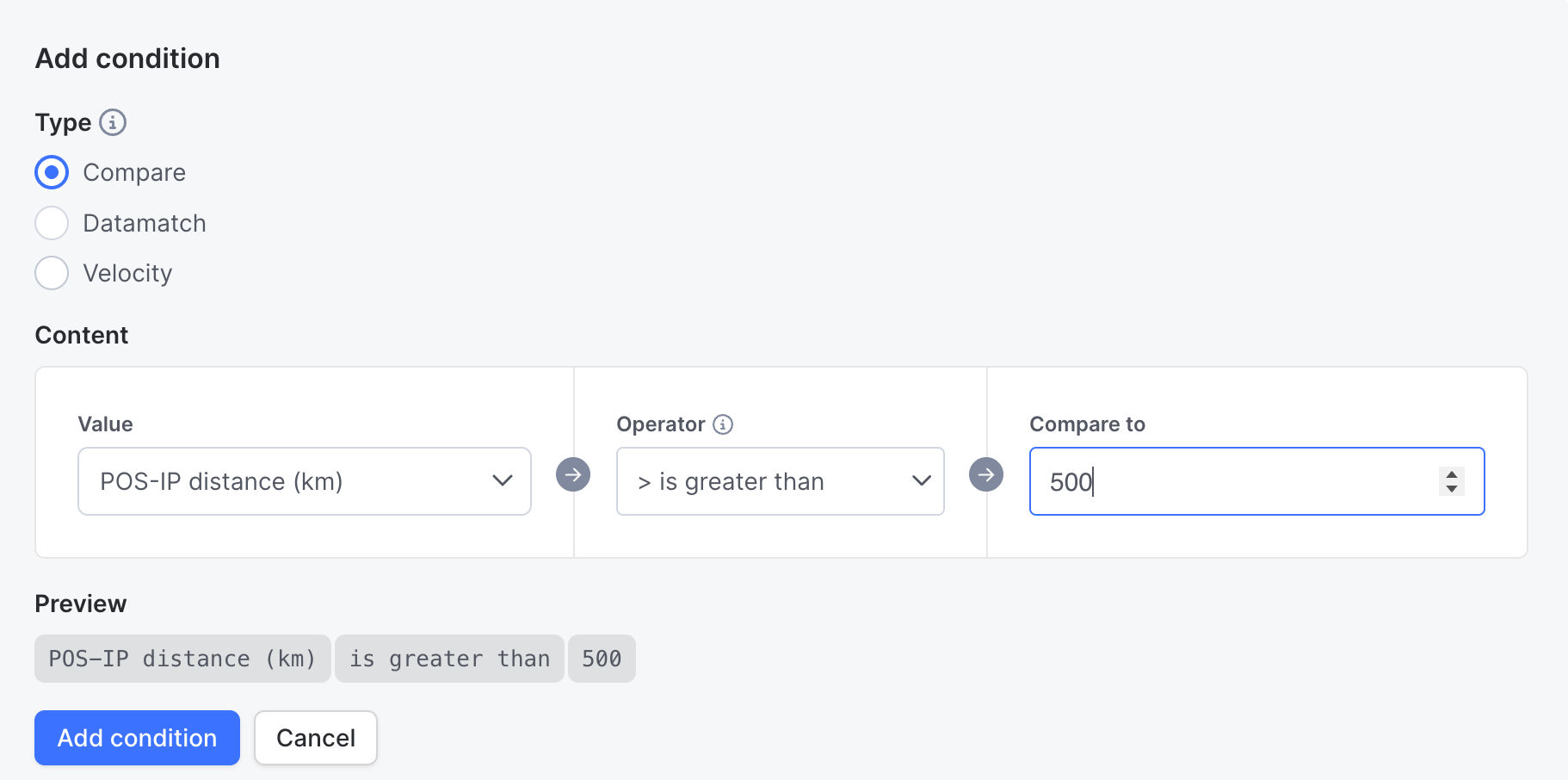
Set the action to REVIEW or apply a score weight of +20 to +30 depending on your risk appetite. Pair with other signals (VPN detection, new device) for higher precision.
Example: Detect mismatches between custom coordinates and billing address
You receive GPS coordinates from a mobile app and want to verify they're consistent with the billing address on file:
custom_billing_distance > 200
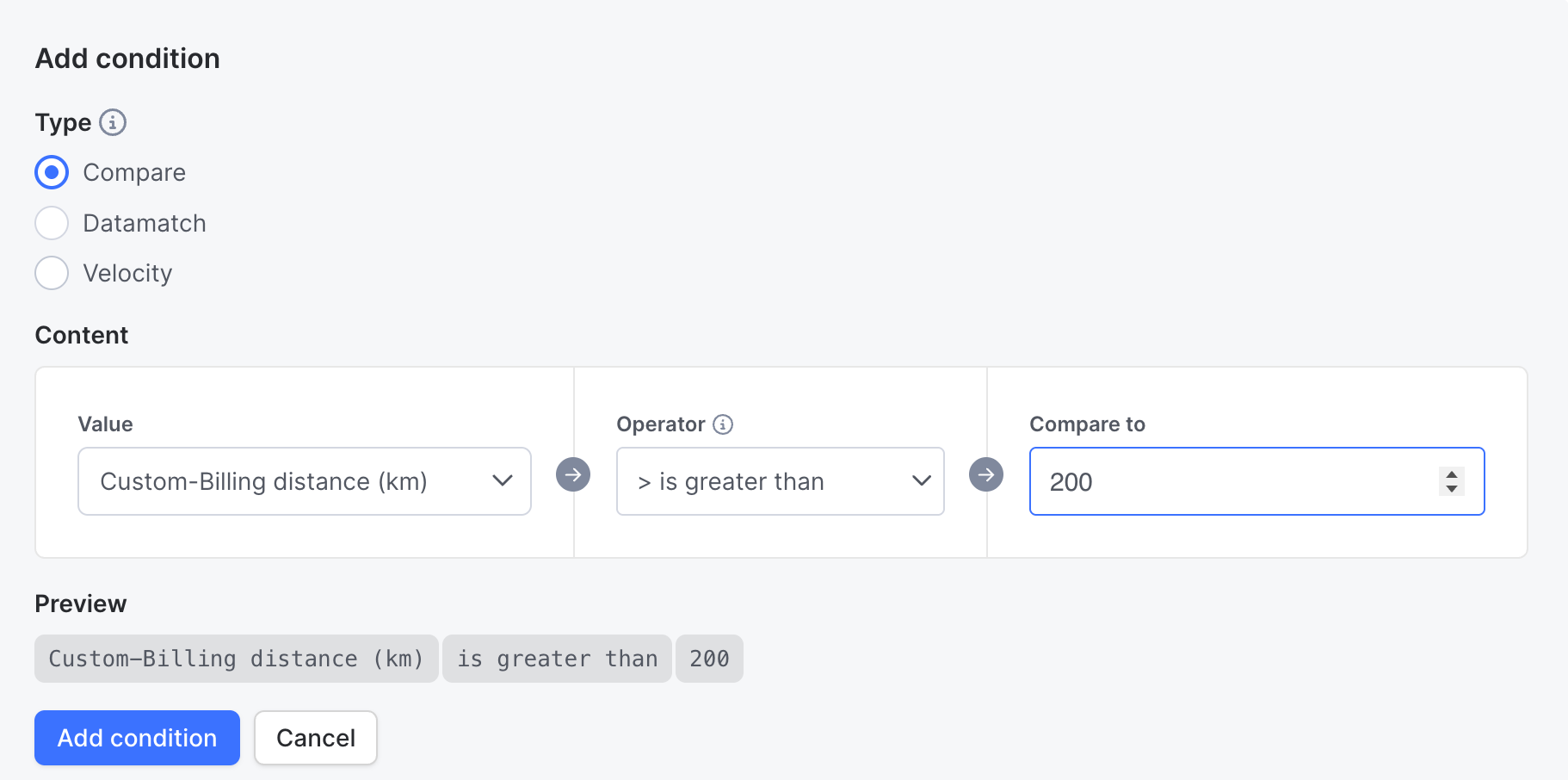
This catches scenarios where the user's device is in a different region than their stated billing address.
Where to view coordinates in SEON
Address widget
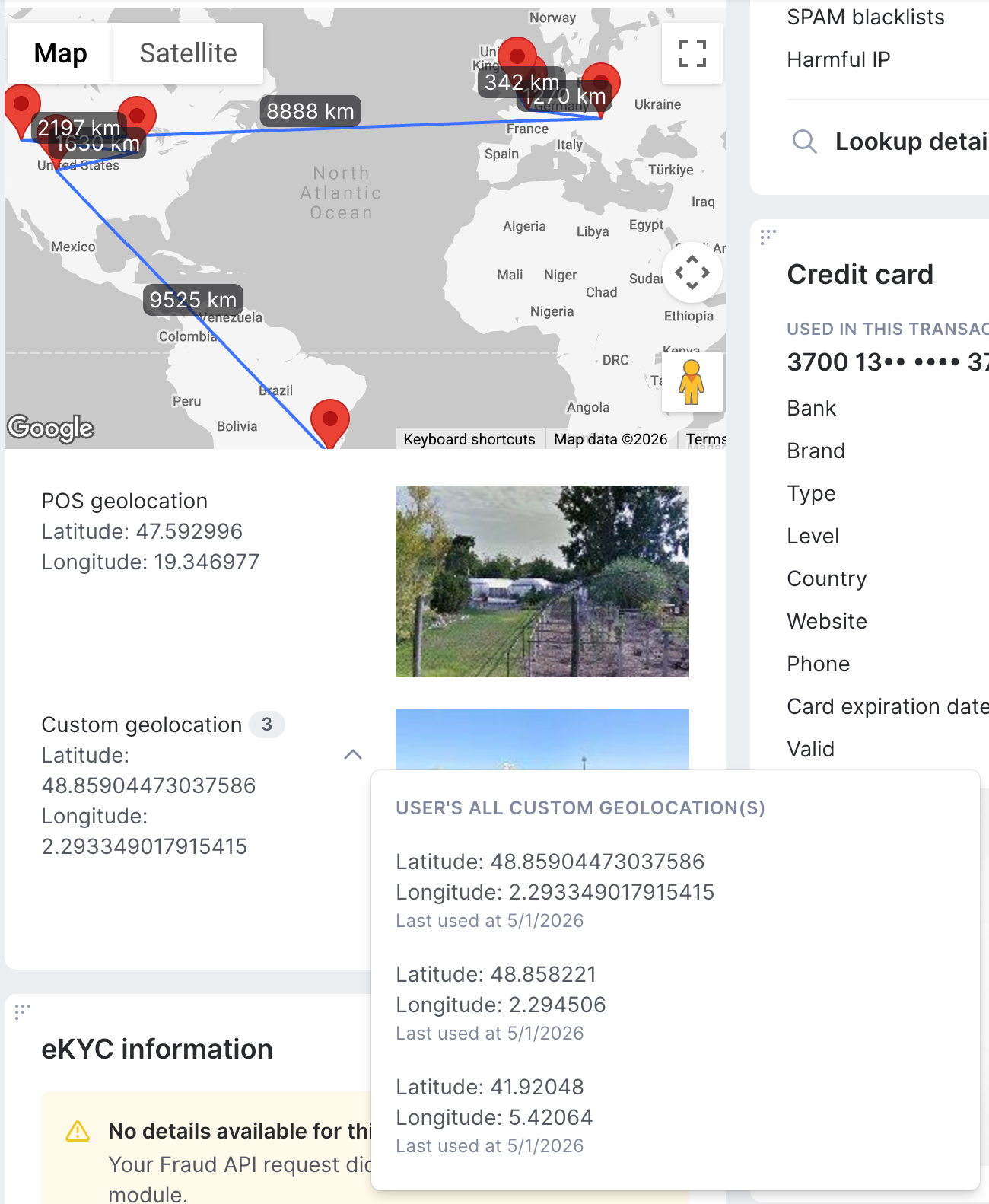
The Address Widget on the Transaction details page displays the new POS and custom coordinate locations on a map. The distance values and new distances are listed at the bottom of the widget.
The map pins show the physical locations corresponding to your submitted coordinates. If both POS and custom coordinates are provided, both appear as separate pins. Click a pin to see the exact latitude and longitude.
Custom Geolocation History
The widget also includes a User's All Custom Geolocation(s) panel that shows all custom or POS coordinates previously submitted for the same user, along with the date each was last used. This history helps analysts spot patterns — for example, a user whose custom coordinates suddenly shift to a different continent.
Interpreting Distance Values
Distance values are calculated as straight-line distances in kilometers. Keep these factors in mind when setting rule thresholds:
- A value of
-1means missing data. If one of the two locations needed for a calculation isn't available, such as no shipping address on file, no IP geolocation resolved or coordinates not passed, then the distance field returns-1instead of a number. This is not zero distance. It means the comparison couldn't be made. Consider building a separate rule to flag-1values on high-risk transactions, since missing location data can itself warrant review. - IP-derived locations are approximate. IP geolocation is typically accurate to the city level, not the street level. A
pos_ip_distancevalue of 10–50km may reflect IP geolocation imprecision, not a genuine mismatch. Set thresholds accordingly. - Zero distance doesn't guarantee legitimacy. A fraudster using a VPN in the same city as the terminal would produce a low
pos_ip_distancevalue. Combine distance rules with VPN detection and device intelligence signals. - High distance is a strong signal, not a verdict. Customers travel. A billing address in New York and a POS terminal in Miami isn't inherently suspicious. Layer distance rules with velocity and behavioral signals.
How to Access
To access distance mismatch calculation based on POS, a Custom location just add the fields to the Fraud API request; SEON will automatically calculate it and surface in the response and on the transaction details page. All new fields are available to be used in rules right away.