


SEON MCP: AI-Assisted Investigation Guide

Updated on 16.09.26

7 minutes to read

Copy link
Overview
SEON MCP connects your Claude/ ChatGPT / Gemini / Cursor / Grok directly to your SEON account. Instead of manually building filters or clicking through multiple screens, you describe what you want to find in plain English. AI translates your question into a secure query, retrieves the relevant data from SEON and presents a clear summary of the results.
This guide is for fraud and AML analysts who may be new to AI tools. No technical background is required.
What is MCP?
MCP (Model Context Protocol) is an open standard that gives AI assistants a consistent way to connect to external systems. SEON's MCP server lets any compatible AI assistant query your investigation data on your behalf.
The connection is secure, auditable and strictly read-only so AI cannot change anything in your SEON account.
| What it does | Lets you query SEON using plain-English questions in your AI assistant |
| What it cannot do | Create or modify rules, label transactions or change account settings |
| Who can enable it | Account admins only (Settings -> System -> AI & Machine Learning -> Agent & MCP settings) |
| Supported AI tools | Claude, ChatGPT, Gemini CLI, Microsoft Copilot, Cursor, Grok |
| Data access | Read-only; respects your existing SEON role permissions |
| Audit trail | Every AI query is logged in the SEON Activity Log |
Before you begin
Complete these two steps once before connecting any AI tool. You only need to do this once per account and per user.
MCP is disabled by default. An account admin must enable it before any AI tool can connect.
Step 1: Enable MCP in your SEON account
Log in to SEON. Navigate to Settings -> System -> AI & Machine Learning -> Agent & MCP settings, toggle MCP on and click Save at the top right hand of the screen. Only users with Admin permissions can perform this step.
Step 2: Verify your user permissions
SEON MCP respects your existing role-based permissions. If you cannot view a customer or transaction in the SEON UI, you will not be able to access it through MCP either. Contact your admin if you need your access level expanded.
Available tools
Once connected, your AI assistant can use our read-only investigation tools. In most supported clients, you do not need to choose the tool yourself. AI selects the right tool based on your request.
| Tool | Name | What it does |
| Transaction filtering | seon_filter_transactions | Find transactions matching the criteria you describe in plain English |
| SEON fields | seon_get_filter_fields | List the fields you can filter and sort transactions by, with their types and operators |
| Transaction statistics | seon_get_transaction_stats | Get aggregated counts, amounts, fraud scores and decline rates across a filtered set |
| Single transaction details | seon_get_transaction_details | Retrieve a full breakdown and explanation of a specific transaction |
| Customer details | seon_get_customer_details | View a complete customer profile: risk signals, activity history and network connections |
| Similarity ranking | seon_get_similar_customers | Find users who share device, IP, card or email signals with a specific customer |
| Rule information | seon_get_rule_info, seon_get_rule_trigger_stats | Look up a Scoring Engine rule, see what it does, and how often it has fired |
| AML screening information | seon_get_aml_screening_info | Retrieve AML screening result for a person |
| Alerts | seon_get_alerts | Retrieve a filtered alert list, or one specific alert with its details |
| Alert trigger | seon_get_alert_triggers | Retrieve the alert triggers and the logic behind them |
| Account overview | seon_get_account_info | Shows your decision thresholds, currency and timezone settings, and lists which SEON tools you can use |
| Knowledge base | seon_get_knowledge_base | Provides answers to questions about SEON functionalities |
| Activity log | seon_get_platform_activity_log | Looks up who did what and when in your account |
| Lists | seon_get_list | Checks if a value is on an white, black, or custom list, or shows a list's entries |

Transaction filtering
Describe the transactions you want to find in plain English. SEON converts your description into structured filters and returns a preview of up to 50 matching transactions, along with aggregate statistics for the full result set. You can also reference saved filters by name.
Example prompts:
- Show me declined transactions from the last 7 days with an amount over 100 EUR.
- Find transactions from the last 14 days where the IP country is the US, but the billing country is not the US.
- Filter to card payments from Hungary and Romania, completed status only, from the past 30 days.
- Run the "High Risk Customer" saved filter and show me the results.
- Find transactions where the customer email contains @gmail.com and the status is review.
Transaction filter fields
Discover which fields are available when filtering or sorting transactions. This tool returns field definitions, the field name, ID, data type and the operators each field supports. Use it when you are unsure what you can filter on.
Example prompts:
- What fields can I filter transactions by?
- Show me all the date fields available for filtering.
- Which IP-related fields can I use in a filter?
- What custom fields are available on transactions in my account?
Note: seon_get_filter_fields returns the catalog of filterable fields, not transaction results. To search transactions, describe what you want and AI will use the transaction-filtering tool.
Transaction statistics
Get aggregated statistics across a filtered set of transactions. This is useful for trend analysis, shift handovers and reporting to leadership. Statistics include transaction counts, total and average amounts, fraud score distribution (min/max/average), AI insight score, decline and review rates and unique user and device counts.
Example prompts:
- How many declined transactions did we have over the last 7 days, and what were the total and average amounts?
- For the last 30 days, compare transaction volume by billing country for Hungary versus Romania
- For declined transactions in the last 7 days, how many unique users and devices are involved?
- What is the fraud score distribution for Visa transactions with BIN 457123?
- For the saved filter "High Risk Customers", what are the key stats?
Single transaction details
Retrieve the full details of a single transaction using its transaction ID or by pasting the SEON admin URL directly into your AI chat. AI can return either a structured data payload or a summary. You can choose which data dimensions to include — triggered rules, linked devices, email signals, IP signals, card details and more.
Example prompts:
- Summarise transaction 12345
- Why is transaction 12345 in review?
- What caused the high fraud score for transaction 12345?
- Show me the linked devices and IPs for transaction 12345
- Which rules triggered for transaction 12345?
You can also paste a SEON admin URL directly into your prompt instead of a transaction ID. For example: "Summarise this transaction: https://admin.seon.io/transactions/12345/summary"
Customer details
Retrieve a complete customer profile for a given user ID or SEON customer URL. This includes the customer's risk signals, full activity history and network connections — showing who they are linked to through shared devices, emails, IPs or payment cards.
Example prompts:
- Who is user_abc and what is their risk profile?
- What has user_abc been doing in the last week?
- Show me any suspicious activity for user_abc in the last month.
- Show me clusters around user_abc, shared device, email, IP or card.
- Who is the customer behind transaction 12345?
Similarity ranking
Find other users who share data points - such as device fingerprint, IP address, card BIN or email domain - with a specific customer or transaction. Results are ranked and grouped into three tiers: Identical, Highly Similar and Associated. This tool is particularly valuable for uncovering coordinated fraud rings and account takeover clusters.
What the tiers mean:
- Identical: Users sharing the exact same high-confidence signal (e.g., the same device fingerprint or card number).
- Highly Similar: Users sharing multiple signals, suggesting a strong connection.
- Associated: Users sharing at least one signal, indicating a weaker but potentially relevant link.
Example prompts:
- Who else looks like user_abc?
- Show me identical and highly similar users to user_abc, and what data points they share.
- Are there near-duplicate accounts for this user?
- Find other users strongly connected to transaction 12345.
Rule information
Look up a Scoring Engine rule and see how it has been firing. AI can return the rule's name, status, action, score impact, category, conditions and version history, and can also break down how often the rule fired in a given window. You can ask by rule ID, rule name or transaction ID.
- For transaction 48291, list every rule that triggered and explain each one.
- Which 10 rules fired most often in the last 30 days?
- Show me the trigger trend for rule 5012 over the last 30 days.
- Which active rules use Device IP ?
- Which rules have the highest decline rate this month?
AML screening info
Retrieve AML screening results for a person from SEON's AML module. AI can return PEP, sanctions, watchlist, crime list and adverse-media hits, the current case status, monitoring state, and the analyst log. Ask by AML hash, by linked transaction user ID, or by name.
Example prompts:
- Pull the AML screening for hash abc123 and summarise the hits.
- Who is behind transactionUserId user_42? Show their AML record and analyst log.
- Search AML for "John Smith" with PEP or sanctions hits in the last 30 days.
Alerts
List and summarise alerts. AI can return individual alert - alert type, status, assignee, and creation date. This is useful for queue triage, shift handovers and reporting on case workload. You can scope results by status, type and date range.
Example prompts:
- How many open case alerts do we have right now, broken down by status?
- Show me the alerts created in the last 24 hours and their current status.
- Give me a breakdown of alerts by type for the last 7 days.
- List unassigned alerts so I can pick up the next one.
Alert triggers
Look up how alert triggers are set up. AI can list the configured triggers so you can scan them, then return the full configuration for a specific trigger by its ID , including the conditions that generate an alert and the trigger's current state. This helps analysts confirm why alerts are (or are not) being raised.
Example prompts:
- List all of our alert triggers and whether they're active.
- Show me the full configuration for alert trigger 1024.
- What conditions cause trigger 1024 to fire?
Account overview
seon_get_account_info shows your account's permissions, currency and timezone settings, and how your fraud score maps to Approve, Review, and Decline. Ask it first in a session, so AI already knows your access level and which other SEON tools you can use. The tool never returns billing information, plan details, or account secrets such as API keys.
Example prompts:
- What can I access in this account, and how is it configured?
- What are my account's Approve, Review, and Decline thresholds?
- What currency and timezone are transactions shown in?
Knowledge base
seon_get_knowledge_base answers general questions about how SEON works, using SEON's own documentation. Every answer includes a source link so you can read further.
If AI cannot find a match, rephrase the question or browse docs.seon.io directly.
Example prompts:
- What does the AI insight score mean?
- What is a True Device ID?
- How do velocity rules work?
Activity log
seon_get_platform_activity_log looks up who did what and when in your account: logins, manual review decisions, rule and list changes, automation runs, and MCP actions.
Example prompts:
- What happened in my account over the last 7 days?
- Show me every manual review decision from yesterday.
- List all MCP activity from the last 24 hours.
- What changes were made to rule id12345, and by whom?
Lists
seon_get_list checks whether a value, such as an email, IP address, card, device, or phone number, appears on an white, blakc, or custom list. It can also show a list's entries or list which lists exist on your account.
Include the field a value belongs to, such as email or IP, so AI checks the right list column.
Example prompts:
- Is 8.8.8.8 on any of my blacklists?
- Which lists is user_abc@gmail.com on, and when was it added?
- Show me the entries on my "Trusted customers" list.
- What lists are set up on my account?
Security and permissions
SEON MCP is designed with a security-first approach. Access is controlled at every level, from the account-level toggle to individual user permissions. The following controls are in place by default.
Explicit opt-in: MCP access is disabled by default for all accounts. An admin must intentionally enable it in Settings before any AI tool can connect.
OAuth authentication: All MCP connections use OAuth. Users must log in and explicitly grant permission before any data can be accessed. No static API keys are used.
Permission-scoped access: MCP tools respect your existing SEON role permissions. You can only access data that your user role already permits within the SEON UI.
Read-only: No rules can be created, no transactions labelled and no account settings changed via MCP. AI can only retrieve and summarize data.
Full audit trail: Every MCP action is recorded in the SEON Activity log with a dedicated MCP icon and filter. Nothing is hidden from your security or compliance team.
Safety switch: Admins can disable all MCP access for the entire account instantly via a single toggle in Settings - no engineering action required.
Setup guides
Follow the guide for the AI platform you use. Setup time varies by platform, plan and admin controls. All supported platforms use the same SEON MCP endpoint and an OAuth sign-in flow.

Claude
The claude.ai web interface is the recommended path for fraud analysts. No software installation is required — you connect directly from your browser.
Step 1 Enable MCP in the SEON Admin Panel
Go to admin.seon.io and sign in. Navigate to Settings -> System -> AI & Machine Learning -> Agent & MCP settings, turn MCP on, and click Save. Only users with Admin permissions can complete this step.
Step 2 Open connectors in Claude
Go to claude.ai and sign in.
Team or Enterprise: An admin system Owner must first add the connector in Organization settings -> Connectors.
If you're on our Europe region, you can use our official connector:
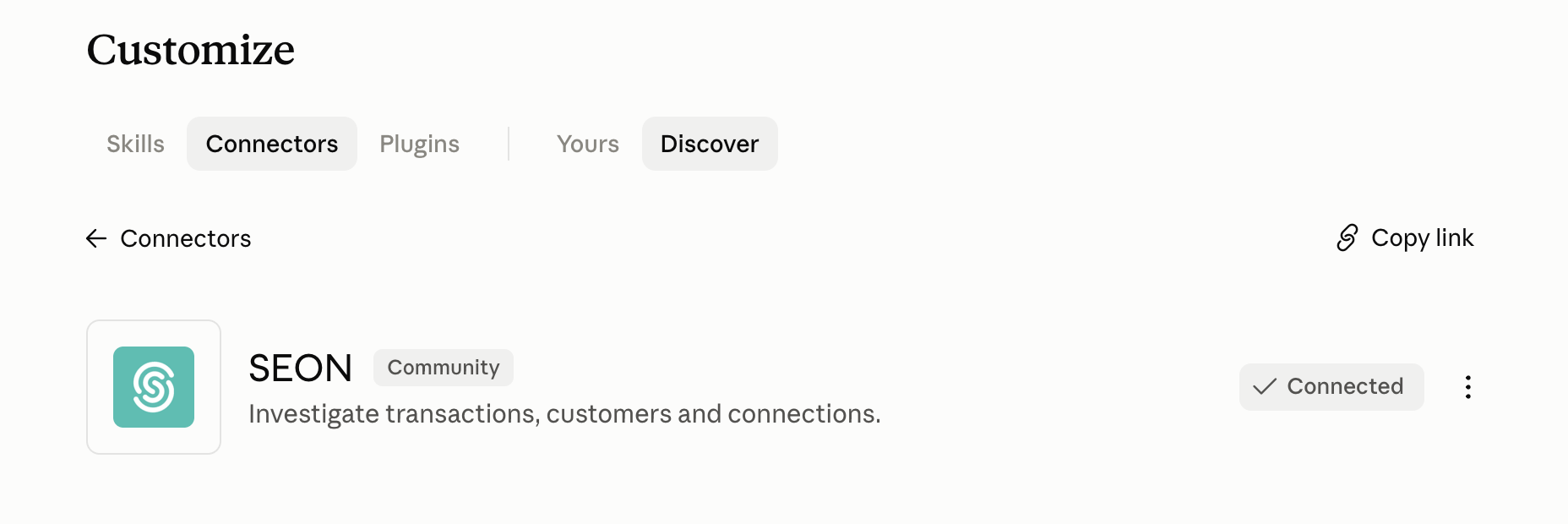
If not: open Settings / Connectors, click +, then click Add custom connector.
Step 3 Add the SEON connection
Give the connection a name (for example, "SEON") and paste your SEON MCP endpoint depending on the region that you live in. Use the endpoint for your SEON region:
- Europe: https://mcp.seon.io/mcp
- North America: https://mcp.us-east-1-main.seon.io/mcp
- Middle East: https://mcp.me-central-1-main.seon.io/mcp
- Asia Pacific (Singapore): https://mcp.ap-southeast-1-main.seon.io/mcp
- Asia Pacific (Jakarta): https://mcp.ap-southeast-3-main.seon.io/mcp
If you are unsure about what URL you should use, login to your SEON account and look at the URL. Choose the URL that matches your environment. For example, for European hosted accounts, URLs will show up as https://admin.seon.io/ and map to https://mcp.seon.io/mcp
Step 4 Complete the OAuth login
Claude opens the SEON sign-in and consent flow. Sign in with your normal SEON credentials and approve the requested permissions. The connection shows as active once complete.
Step 5 Start investigating
Open a new Claude conversation and try: "Show me declined transactions from the last 7 days." Claude will automatically call the SEON tools and present the results.
Claude desktop
Claude Desktop can use the same remote SEON connector as Claude web. Use this path if you prefer the desktop app.
Step 1 Enable MCP in the SEON Admin Panel
Go to admin.seon.io and sign in. Navigate to Settings / System / AI & Machine Learning -> Agent & MCP settings, turn MCP on, and click Save. Only users with Admin permissions can complete this step.
Step 2 Install Claude Desktop
Download and install Claude Desktop from claude.ai/download, then sign in with your Claude account.
Step 3 Open connectors in Claude Desktop
Open Claude Desktop.
Team or Enterprise: An admin system Owner must first add the connector in Organization settings -> Connectors.
If you're on our Europe region, you can use our official connector:
If not: Open Settings / Connectors, click +, then click Add custom connector.
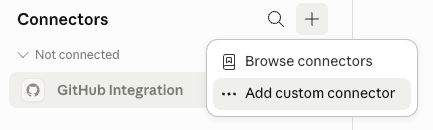
Step 4 Add the SEON connection
Give the connection a name (for example, "SEON") and paste your SEON MCP endpoint. Use the endpoint for your SEON region:
- Europe: https://mcp.seon.io/mcp
- North America: https://mcp.us-east-1-main.seon.io/mcp
- Middle East: https://mcp.me-central-1-main.seon.io/mcp
- Asia Pacific (Singapore): https://mcp.ap-southeast-1-main.seon.io/mcp
- Asia Pacific (Jakarta): https://mcp.ap-southeast-3-main.seon.io/mcp
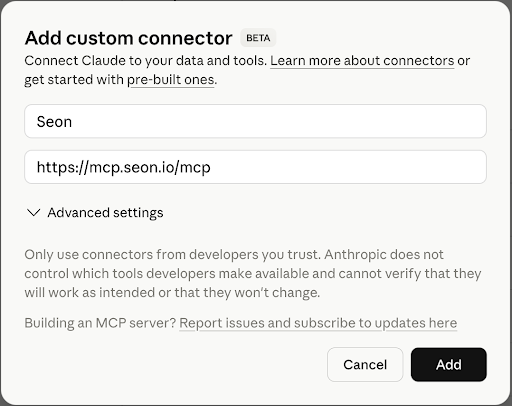
If you are unsure about what URL you should use, login to your SEON account and look at the URL. Choose the URL that matches your environment. For example, for European hosted accounts, URLs will show up as https://admin.seon.io/ and map to https://mcp.seon.io/mcp
Step 5 Complete the OAuth login
Claude opens the SEON sign-in and consent flow. Sign in with your normal SEON credentials and approve the requested permissions. The connection shows as active once complete.
Step 6 Start investigating
Open a new Claude conversation and, if prompted, enable SEON for that chat. Try: "Show me declined transactions from the last 7 days."
ChatGPT - Web
ChatGPT support for custom MCP apps is currently subject to OpenAI plan, workspace and admin controls, and the UI may change while the feature is in beta. Verify current OpenAI availability for your account before using this setup path.
Step 1 Enable MCP in the SEON Admin Panel
Go to admin.seon.io and sign in. Navigate to Settings / System / AI & Machine Learning -> Agent & MCP settings, turn MCP on, and click Save. Only users with Admin permissions can complete this step.
Step 2 Confirm access
Ask your ChatGPT workspace admin or owner to confirm that developer mode and custom MCP apps are enabled for your account.
Step 3 Enable Developer Mode
In ChatGPT web, open Settings -> Apps -> Advanced settings and enable Developer mode if it is available to your account.
Step 4 Add SEON app
Open Settings -> Apps and create or add a custom MCP app for the SEON endpoint. Enter:
Name: SEON
Server URL: your SEON MCP endpoint for the correct region
- Europe: https://mcp.seon.io/mcp
- North America: https://mcp.us-east-1-main.seon.io/mcp
- Middle East: https://mcp.me-central-1-main.seon.io/mcp
- Asia Pacific (Singapore): https://mcp.ap-southeast-1-main.seon.io/mcp
- Asia Pacific (Jakarta): https://mcp.ap-southeast-3-main.seon.io/mcp
If you are unsure about what URL you should use, login to your SEON account and look at the URL. Choose the URL that matches your environment. For example, for European hosted accounts, URLs will show up as https://admin.seon.io/ and map to https://mcp.seon.io/mcp
Auth type: OAuth
Click on Advanced OAuth settings and, under Registration method, select Dynamic Client Registration (DCR).
Step 5 Authenticate
ChatGPT redirects you to the SEON OAuth sign-in page. Sign in and approve permissions.
Step 6 Use SEON in a conversation
Start a new conversation, enable the SEON app if prompted, and try: "Show me declined transactions from the last 7 days."
Grok
Grok connects to SEON through the same remote MCP endpoint as every other client, using an OAuth sign-in. You can connect from the grok.com web interface
Step 1 Enable MCP in the SEON Admin Panel
Go to admin.seon.io and sign in. Navigate to Settings / System / AI & Machine Learning -> Agent & MCP settings, turn MCP on, and click Save. Only users with Admin permissions can complete this step.
Step 2 Open connectors in Grok
Go to grok.com and sign in. In the left menu, open Skills and Connectors, select the Connectors tab, then click New Connector and select Custom.
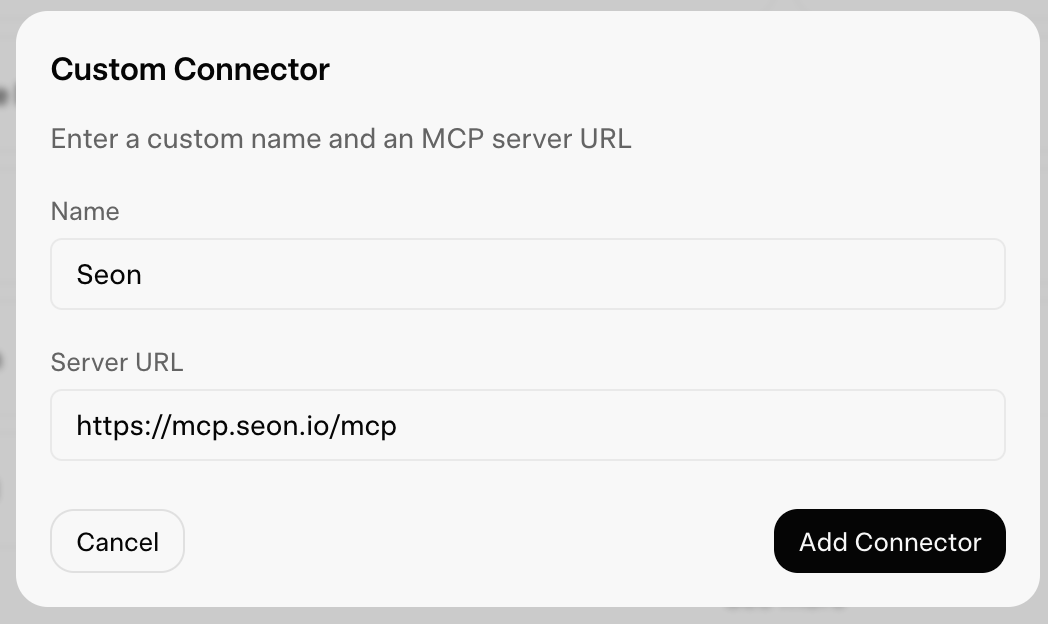
Step 3 Add SEON connection
Name: SEON
Server URL: your SEON MCP endpoint for the correct region
- Europe: https://mcp.seon.io/mcp
- North America: https://mcp.us-east-1-main.seon.io/mcp
- Middle East: https://mcp.me-central-1-main.seon.io/mcp
- Asia Pacific (Singapore): https://mcp.ap-southeast-1-main.seon.io/mcp
- Asia Pacific (Jakarta): https://mcp.ap-southeast-3-main.seon.io/mcp
If you are unsure about what URL you should use, login to your SEON account and look at the URL. Choose the URL that matches your environment. For example, for European hosted accounts, URLs will show up as https://admin.seon.io/ and map to https://mcp.seon.io/mcp
Step 4 Authenticate
Grok redirects you to the SEON OAuth sign-in page. Sign in and approve permissions.
Step 5 Use SEON in a conversation
Start a new conversation, enable the SEON app if prompted, and try: "Show me declined transactions from the last 7 days."
Cursor
Step 1 Enable MCP in the SEON Admin Panel
Go to admin.seon.io and sign in. Navigate to Settings / System / AI & Machine Learning -> Agent & MCP settings, turn MCP on, and click Save. Only users with Admin permissions can complete this step.
Step 2 Add SEON to the Cursor configuration
Open (or create) ~/.cursor/mcp.json and add the SEON MCP server:
{
  "mcpServers": {
    "seon": {
      "url": "https://mcp.seon.io/mcp"
    }
  }
}
Server URL: your SEON MCP endpoint for the correct region
- Europe: https://mcp.seon.io/mcp
- North America: https://mcp.us-east-1-main.seon.io/mcp
- Middle East: https://mcp.me-central-1-main.seon.io/mcp
- Asia Pacific (Singapore): https://mcp.ap-southeast-1-main.seon.io/mcp
- Asia Pacific (Jakarta): https://mcp.ap-southeast-3-main.seon.io/mcp
If you are unsure about what URL you should use, login to your SEON account and look at the URL. Choose the URL that matches your environment. For example, for European hosted accounts, URLs will show up as https://admin.seon.io/ and map to https://mcp.seon.io/mcp
Step 3 Authenticate
Save the file — Cursor will prompt you to authorize with SEON on first connect
If your Cursor build does not yet support remote OAuth MCP natively, use the Stdio bridge instead:
{
  "mcpServers": {
    "seon": {
      "command": "npx",
      "args": ["-y", "mcp-remote", "https://mcp.seon.io/mcp"]
    }
  }
}
Gemini CLI
Note: These steps apply to Gemini CLI, not the gemini.google.com web interface or the Gemini mobile app.
Step 1 Enable MCP in the SEON Admin Panel
Go to admin.seon.io and sign in. Navigate to Settings / System / AI & Machine Learning -> Agent & MCP settings, turn MCP on, and click Save. Only users with Admin permissions can complete this step.
Step 2 Install Gemini CLI
Run: npm install -g @google/gemini-cli (requires Node.js 18 or later)
Step 3 Add SEON to the Gemini CLI configuration
Open (or create) ~/.gemini/settings.json and add the SEON MCP server:
{
 "mcpServers": {
   "seon": {
     "httpUrl": "https://mcp.seon.io/mcp",
     "timeout": 10000
   }
 }
}
Server URL: your SEON MCP endpoint for the correct region
- Europe: https://mcp.seon.io/mcp
- North America: https://mcp.us-east-1-main.seon.io/mcp
- Middle East: https://mcp.me-central-1-main.seon.io/mcp
- Asia Pacific (Singapore): https://mcp.ap-southeast-1-main.seon.io/mcp
- Asia Pacific (Jakarta): https://mcp.ap-southeast-3-main.seon.io/mcp
If you are unsure about what URL you should use, login to your SEON account and look at the URL. Choose the URL that matches your environment. For example, for European hosted accounts, URLs will show up as https://admin.seon.io/ and map to https://mcp.seon.io/mcp
Step 4 Enable SEON
Please expand the .gemini/mcp-server-enablement.json file with the following:
{
"seon": {
   "enabled": true
 }
}
Step 5 Authenticate
Authenticate with: /mcp auth seon command
Microsoft Copilot
Step 1 Enable MCP in the SEON Admin Panel
Go to admin.seon.io and sign in. Navigate to Settings / System / AI & Machine Learning -> Agent & MCP settings, turn MCP on, and click Save. Only users with Admin permissions can complete this step.
Step 2 Add SEON to the Microsoft Copilot configuration
Any client that supports the MCP JSON config format, including Microsoft Copilot, can connect using the following JSON snippet.
{
  "mcpServers": {
    "seon": {
      "command": "npx",
      "args": ["-y", "mcp-remote", "https://mcp.seon.io/mcp"]
    }
  }
}
Server URL: your SEON MCP endpoint for the correct region
- Europe: https://mcp.seon.io/mcp
- North America: https://mcp.us-east-1-main.seon.io/mcp
- Middle East: https://mcp.me-central-1-main.seon.io/mcp
- Asia Pacific (Singapore): https://mcp.ap-southeast-1-main.seon.io/mcp
- Asia Pacific (Jakarta): https://mcp.ap-southeast-3-main.seon.io/mcp
If you are unsure about what URL you should use, login to your SEON account and look at the URL. Choose the URL that matches your environment. For example, for European hosted accounts, URLs will show up as https://admin.seon.io/ and map to https://mcp.seon.io/mcp
Step 3 Authenticate
The first time it connects it will prompt you to authorize with Seon.
Common investigation workflows
The following examples show how to use SEON MCP for the most common fraud and AML investigation scenarios. Each example shows the prompt you would send and what AI returns.
Morning shift triage
You start your shift and need to quickly understand whether anything unusual happened overnight, without manually building filters in the SEON UI.
Example prompt
"Show me the last 12 hours of declined transactions. How does the volume compare to yesterday, and are there any geographic anomalies?"
What you get back
Returns decline counts, a volume comparison against the previous day, and a breakdown by IP country, flagging any unusual spikes automatically.
Deep-dive into a flagged transaction
A transaction has been flagged for manual review. You need to understand exactly why and decide whether to approve or reject it quickly.
Example prompt
"Why is transaction 48291 in review? What rules triggered, and what does the linked device history look like?"
What you get back
Returns the triggered rule set, fraud score breakdown, linked device fingerprints and a plain-English explanation of the risk signals.
Identify a potential fraud ring
A high-fraud-score user was declined. You suspect they may be part of a coordinated group and want to map the network before taking action.
Example prompt
"Who looks similar to user_7x9mz? Show me identical and highly similar users, and what data points they share."
What you get back
Returns a ranked list of up to 30 connected users grouped by similarity tier, with the shared signals (device ID, card BIN, IP, email domain) that link them.
Alert-queue morning check
You start your shift and need to understand the alert workload before opening the Alerts screen.
Example prompt "How many alerts are open right now? Break them down by status and type, and tell me how many are unassigned."
What you get back Returns a count of open alerts with a breakdown by status and type, plus the number of unassigned alerts, a quick read on the queue before you start working it.
Investigate a high-risk customer
Customer support has escalated an account after multiple chargebacks. Your team needs a full picture before deciding whether to restrict or close the account.
Example prompt
"Show me everything about user john.doe@example.com. What is their risk profile, recent activity and who are they connected to?"
What you get back
Returns the customer profile, full activity history, connection graph highlights and any shared signals with other flagged users.
Card BIN fraud investigation
You notice a BIN range appearing in a high volume of declined transactions and suspect a stolen card dump attack.
Example prompt
"Filter transactions where card BIN starts with 457123, status is declined, from the last 48 hours. How many unique devices and users are involved?"
What you get back
Returns filtered transaction count, unique device and user counts and aggregated fraud scores, confirming or ruling out a coordinated BIN attack pattern.
Daily saved filter report
Your team maintains a saved filter that needs to be checked every morning as part of an SLA commitment. Instead of opening SEON and running the filter manually, you ask AI.
Example prompt
Show me VIP customers in review from the last 24 hours and give me the key stats (counts, amounts, top triggered rules)
What you get back
Returns a repeatable summary for that exact prompt, which is easier to validate and reuse across the team.
Explaining a fraud score to a new analyst
You are new to the team and encounter a transaction with a high fraud score. You are not yet familiar with all of SEON's risk signals and want a plain-language explanation before making a decision.
Example prompt
"I am looking at transaction 88102 and it has a fraud score of 87. Can you explain in plain English what that score means and what I should check next?"
What you get back
Returns a plain-language explanation of the score, the contributing signals, the triggered rules and a recommended next-step checklist, significantly lowering the learning curve for new analysts.
Best practices
The following tips will help you get the most accurate and useful responses from SEON MCP.
Always specify a time range
Vague prompts like "show me declined transactions" may return unexpected date ranges or time out. Be explicit: "Show me declined transactions from the last 7 days with a fraud score above 75."
Use saved filters for repeatable queries
If you run the same type of investigation daily, save the filter in SEON's UI and reference it by name in your prompts. This ensures consistency and saves time: "Run the 'High Risk Customers – Last 24h' saved filter and show me the key stats."
Start broad, then drill down
Begin with a high-level filter to understand the landscape, then follow up with specific transaction or customer queries. This mirrors how experienced analysts work and helps AI maintain context across a conversation.
Chain tools together in one conversation
The most powerful investigations combine multiple tools. Start from a transaction, pivot to the customer, then look at their network — all in the same conversation. Example: "From transaction 99231, who is the customer, and do they have any highly similar users sharing the same device?"
Ask for structured output when reporting
When you need to share findings with colleagues or paste results into a report, tell AI how to format the output: "Summarize the fraud stats for last week in a bullet-point format suitable for a weekly leadership email."
Monitoring MCP activity
All MCP activity is recorded in the SEON Activity log, giving your security and compliance teams full visibility into what AI tools are doing on your behalf.
MCP actions appear in the Activity log with a dedicated MCP icon, making them easy to distinguish from manual analyst actions. You can filter the Activity log to show only MCP-originated activities using the MCP activities filter.
Each Activity log entry records the user who authorized the connection, the tool called, the timestamp and a summary of the query parameters used. Raw transaction data is not logged — only the query context.
Troubleshooting
AI says it cannot find a transaction or a customer
Verify that you have the correct permissions in the SEON dashboard to view that data. MCP cannot bypass your role-based access controls. Contact your admin if you need your access level expanded.
The connection shows as inactive or disconnected
Your OAuth token may have expired. Go to your AI assistant's integration settings, find the SEON connection, and re-authenticate. This typically takes under a minute.
AI is returning results from an unexpected time range
Always include an explicit time range in your prompt. For example: "Show me declined transactions from the last 7 days" rather than "Show me declined transactions."
I cannot see the MCP Access option in Settings
Only users with the necessary permissions can see and enable MCP Access. Contact your SEON account administrator.
FAQs
Is MCP enabled by default?
No. MCP access is disabled for all SEON accounts by default. An account admin must explicitly enable it in (Settings -> System -> AI & Machine Learning -> Agent & MCP settings). Individual users must also complete an OAuth authorization flow before their AI tool can connect.
Can AI answer general questions about how SEON works? Yes. Ask a conceptual question, such as "What does a fraud score mean?", and AI answers using SEON's documentation with a source link. This does not use your account data.
Does MCP bypass my team's existing permissions?
No. SEON MCP respects your existing role-based permissions exactly as they are configured. If a user cannot view a specific customer or transaction in the SEON UI, MCP will not return that data either. OAuth tokens are scoped to the authorizing user's permission level.
Can AI make changes to my SEON account?
No. SEON MCP is strictly read-only in this release. AI cannot create or modify rules, label transactions, change account settings or take any action on your behalf.
How do I revoke MCP access?
A SEON admin can disable MCP access in the SEON MCP settings page. Individual users can also disconnect SEON from their AI client and re-authenticate later if needed. All active sessions are terminated immediately upon revocation.
Is my data safe when using an AI assistant?
Yes. All connections use OAuth, which means AI never sees your SEON password. Access is scoped to your existing permissions, is read-only and every action is logged in the Activity log. You can revoke access at any time.
What is a fraud score, and how should I interpret it?
A fraud score in SEON is a number from 0 to 100 that reflects the level of risk associated with a transaction or customer. A score above 75 is typically considered high risk. You can ask AI to explain any score: "Explain the fraud score for transaction 12345 and what I should check next."
Are there rate limits on SEON MCP requests?
Yes. SEON MCP enforces a limit of 300 requests per minute per account. This applies at the account level. Standard API rate limits apply independently and do not count toward the MCP limit.