


Settings: Automation Rules

Updated on 21.07.26

1 minute to read

Copy link
Overview
Automation Rules allow you to define what happens to an order after SEON assigns it a fraud state (Approve, Review, or Decline). For each state, you can configure:
- Order Action — What SEON does with the order in Shopify
- Tags to Apply — Custom tags added to the order for filtering and workflows
- Include Score Tag — Optionally add a tag with the exact fraud score (e.g., seon_fraud_score:75)
By default, all states are set to No Action with the score tag enabled.
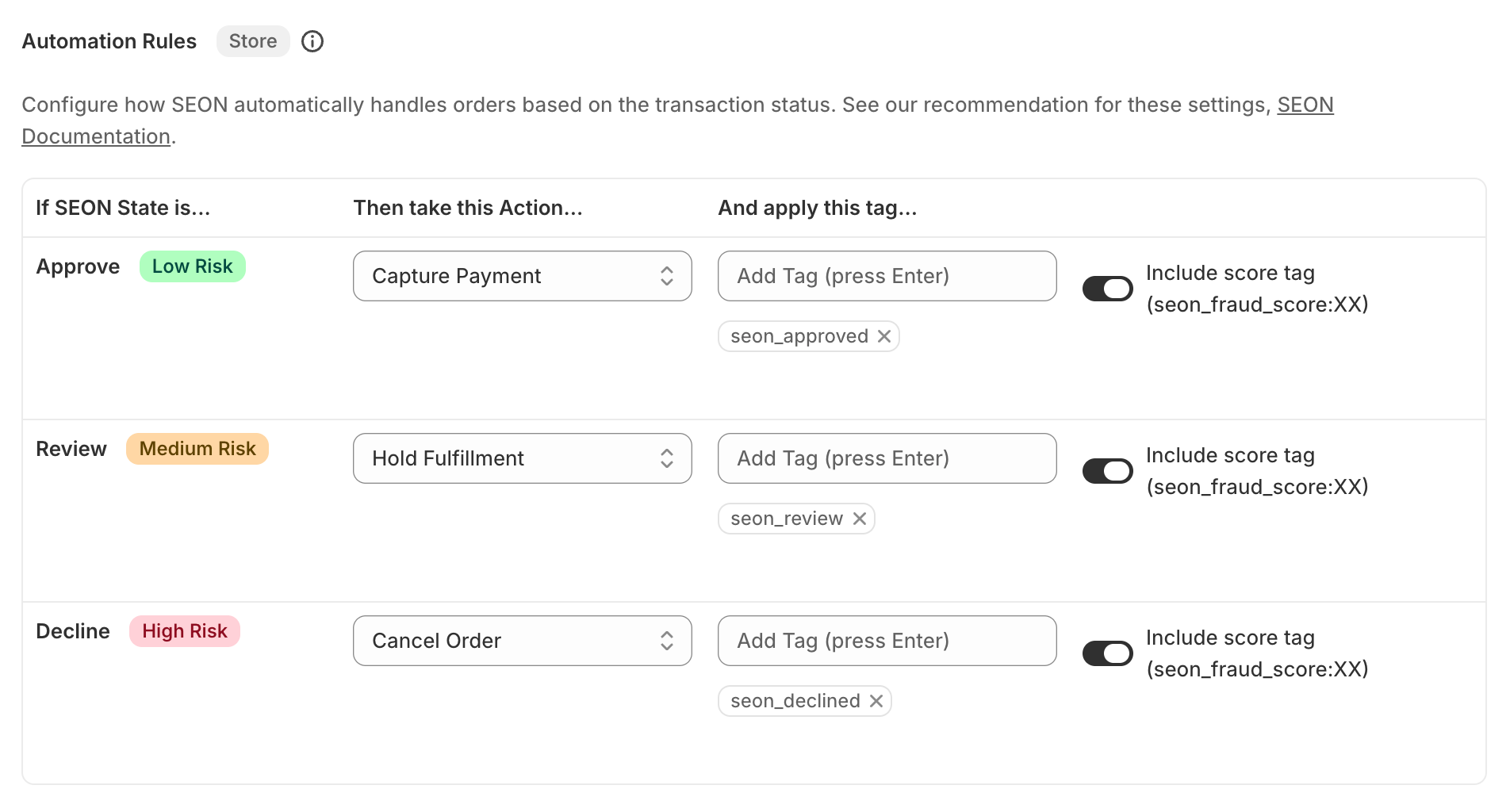
How to configure automation rules
- Open the SEON Fraud Prevention app from your Shopify admin.
- Go to Settings.
- Scroll to the Automation Rules section.
- For each fraud state (Approve, Review, Decline):
- Select the desired Order Action from the dropdown.
- Add custom tags you’d like applied.
- Toggle Include score tag on or off.
- Click Save.
Available actions by state
Each fraud state supports a specific set of order actions:
Approve (low risk)
- No Action (default) — SEON provides the fraud analysis but does not take any action on the order.
- Capture Payment — Automatically captures the authorized payment. Requires manual payment capture to be enabled in Shopify.
- Hold Fulfillment — Places the order fulfillment on hold in Shopify.
Review (medium risk)
- No Action (default) — SEON provides the fraud analysis but does not take any action on the order.
- Capture Payment — Automatically captures the authorized payment.
- Hold Fulfillment — Places the order fulfillment on hold until a manual decision is made.
- Cancel Order — Automatically cancels the order, voids/refunds the transaction, and restocks items.
Decline (high risk)
- No Action (default) — SEON provides the fraud analysis but does not take any action on the order.
- Hold Fulfillment — Places the order fulfillment on hold.
- Cancel Order — Automatically cancels the order, voids/refunds the transaction, and restocks items. Triggers Shopify’s Order Cancelled email flow.
Important notes
- Payment Capture automation requires your Shopify store’s payment capture setting to be set to Manual. You can check this under Settings ? Payments in your Shopify admin. If payment capture is set to Automatic, Shopify captures payment at the time of sale and SEON’s capture automation has no effect.
- Order Cancellation should only be enabled after you’ve customized your scoring thresholds and are confident with the setup. We recommend monitoring SEON’s results first.
- Fulfillment Hold is released automatically when the order check state is updated to APPROVE in the SEON Admin Panel.
- Manual state updates — When a transaction state is updated manually in the SEON admin panel, the order tag is updated and any configured automation actions execute automatically.
- All automation changes apply only to new incoming orders. Previously processed orders are not affected.