


Checking Orders and Order Detail Widget

Updated on 22.06.26

1 minute to read

Copy link
Overview
View fraud analysis results directly in Shopify and take action on suspicious orders. SEON syncs all results back to your Shopify admin and provides a detailed widget on each order’s detail page.
How orders are checked
A SEON transaction refers to any order placed in your Shopify store that includes a successful transaction and is analyzed by SEON. SEON for Shopify operates at the order level, checking every incoming order in real time — typically within a few seconds of the order being placed.
What triggers a fraud check:
- The order has an associated successful transaction
- The order’s financial status is pending with no associated transaction
What does NOT trigger a fraud check:
- Orders with a 100% discount ($0 total price), as no transaction is created
- POS orders (excluded by default)
Viewing results in Shopify
Order tags
Each order checked by SEON receives order tags:
- State tag — seon_approved, seon_review, or seon_declined
- Score tag — seon_fraud_score:XX (where XX is the fraud score, if enabled in Automation Rules)
- Custom tags — Any additional tags configured in your Automation Rules
If a fraud analyst manually changes the state in the SEON Admin Panel, manual state tags are applied (e.g., seon_manual_approved).
You can use these tags to filter orders in your Shopify admin or trigger Shopify Flow automations.
Fraud analysis section
On any order detail page in your Shopify admin:
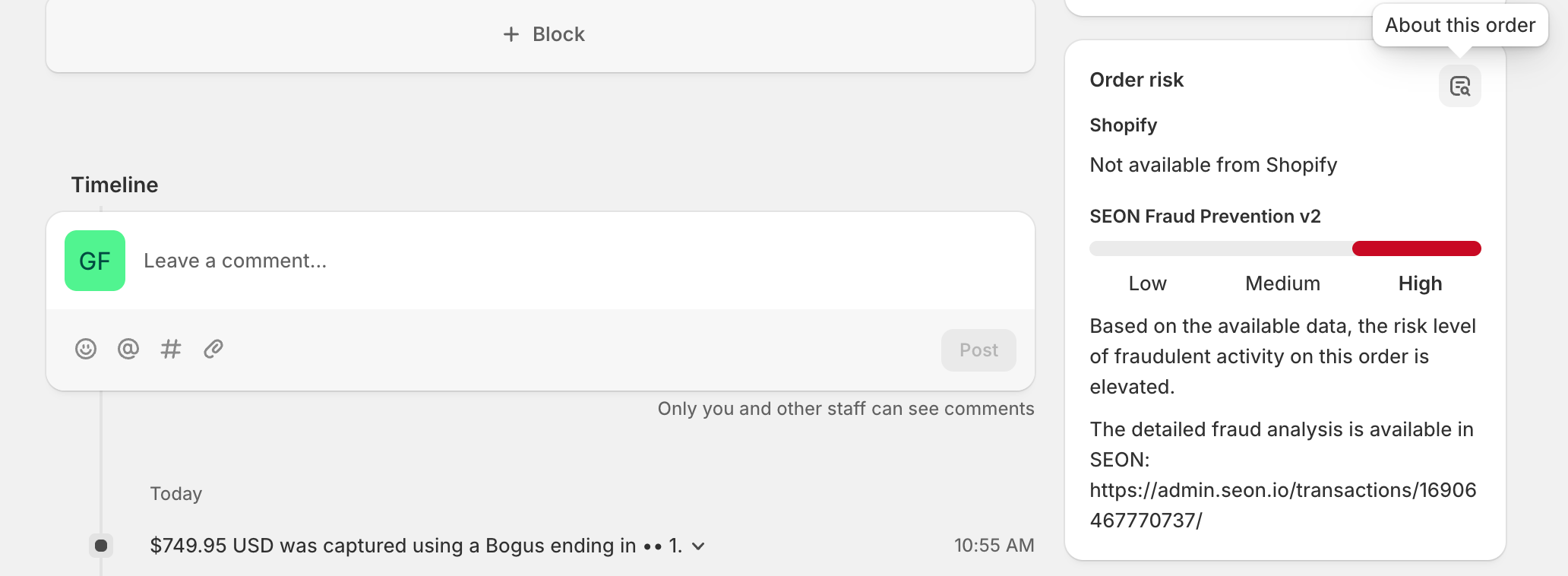
- Go to Orders in your Shopify admin.
- Click on an order.
- Scroll to the Fraud analysis section.
- Click View full analysis.
- Select the SEON Fraud Prevention tab.
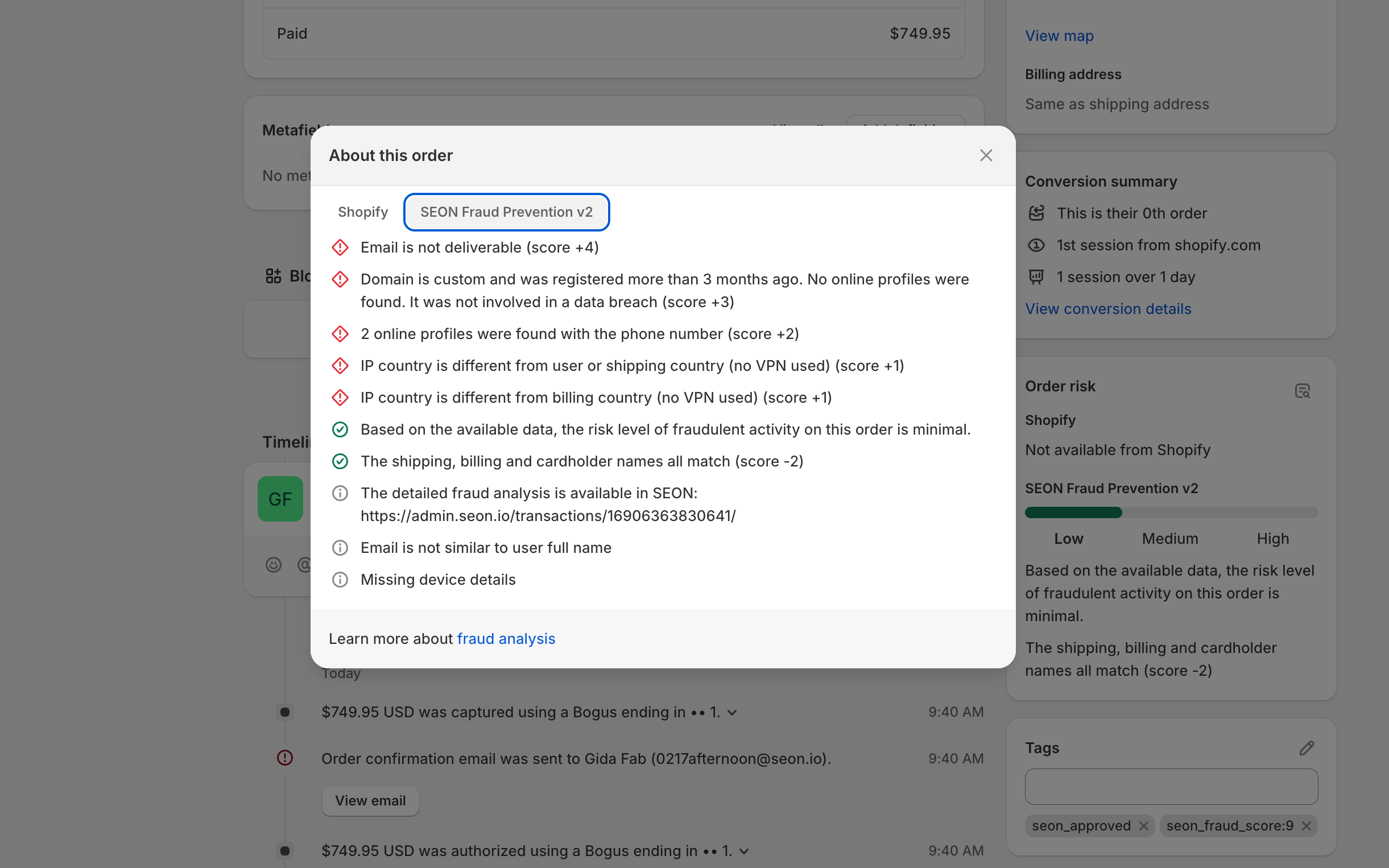
You’ll see the order’s risk level (LOW, MEDIUM, or HIGH) and any applied rules under Indicators. On the order Timeline, you’ll find actions performed by SEON (when enabled).
Order detail widget
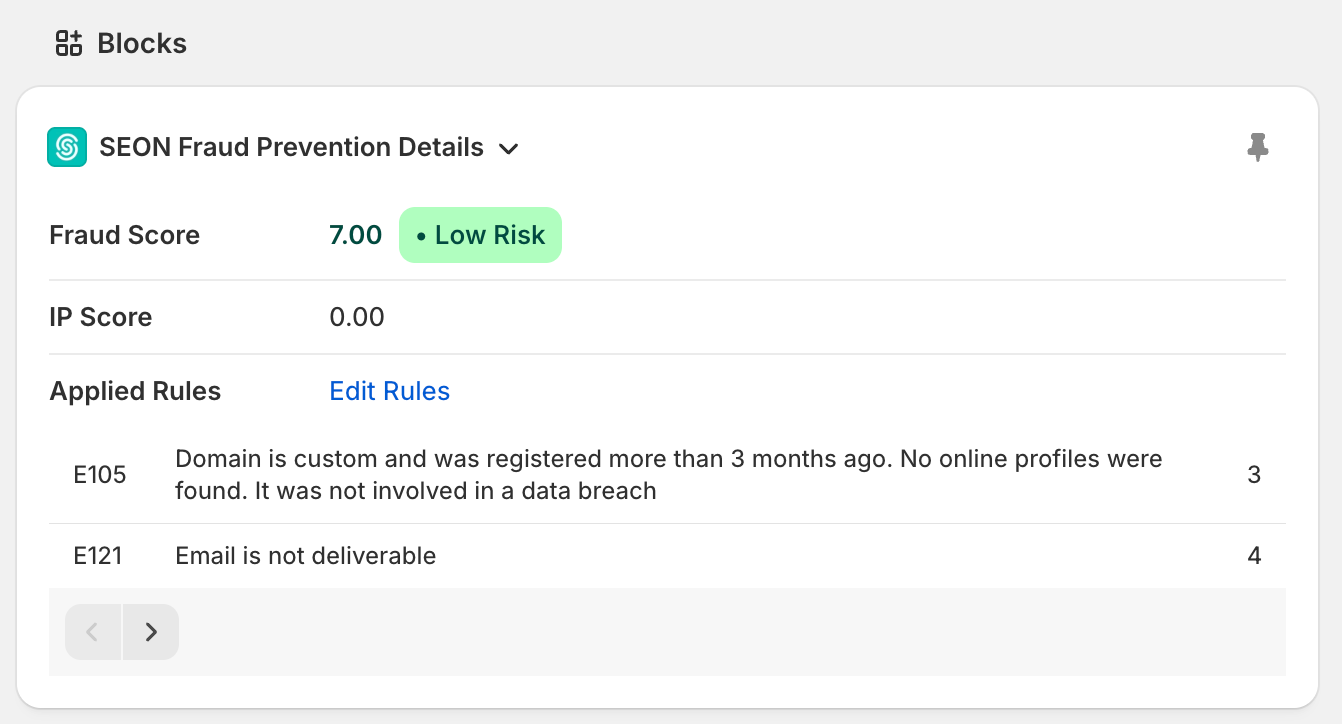
The SEON Fraud Prevention Details widget on the order detail page displays:
- Fraud Score — The overall fraud score (0–100) with a color-coded risk badge (Low Risk / Medium Risk / High Risk)
- IP Score — Risk score based on IP address analysis
- Email Score — Risk score based on email address analysis
Applied rules
Below the scores, the widget shows a table of all rules that contributed to the fraud score. Each rule displays:
- Rule ID — The rule identifier (e.g., General Rule 1000647, IP Rule P107)
- Rule Name — Description of what the rule checks (e.g., “IP address was found on 1 spam blacklist”)
- Score — The score impact of this rule
Rules are displayed 2 per page. If more than 2 rules are applied, previous/next navigation arrows appear to page through all applied rules.
An Edit Rules link is provided that navigates to the Settings page.
Viewing results in SEON Admin Panel
For more detailed analysis:
- Log in to the SEON Admin Panel.
- Go to Transactions.
- Click on a transaction to see the full fraud analysis, including all enrichment data, rule details, and risk signals.
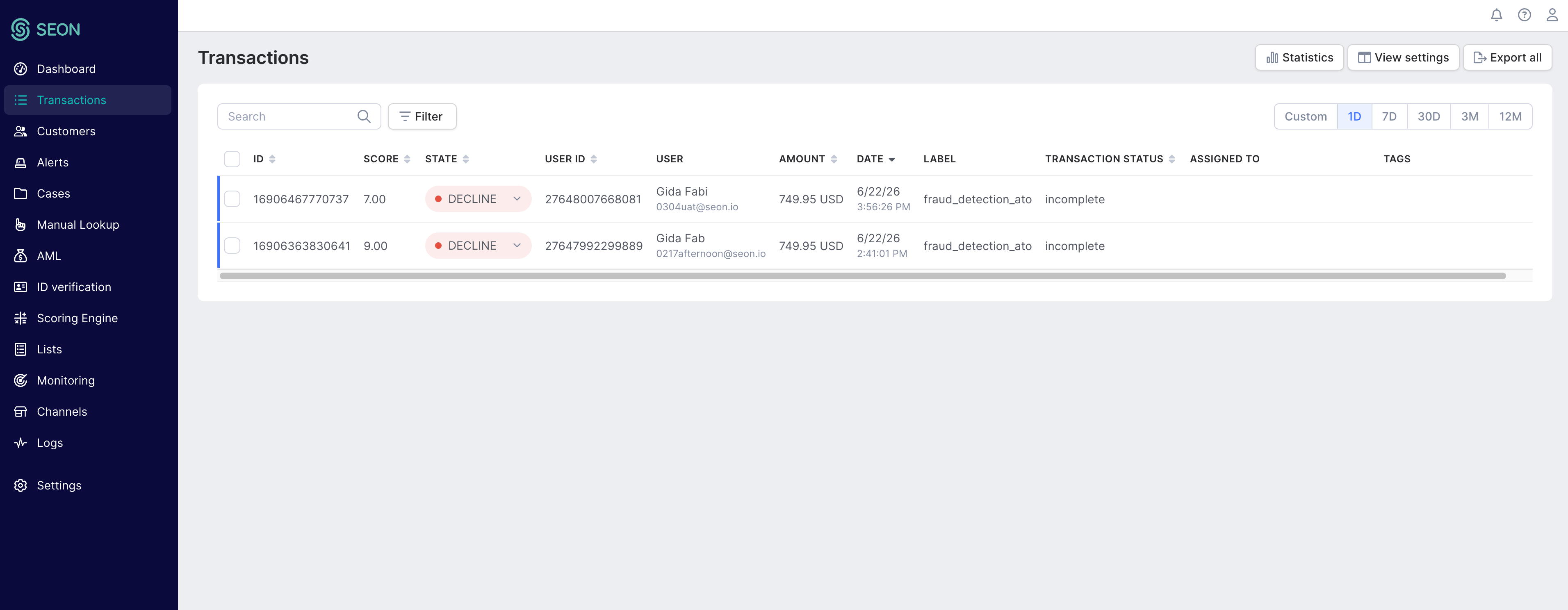
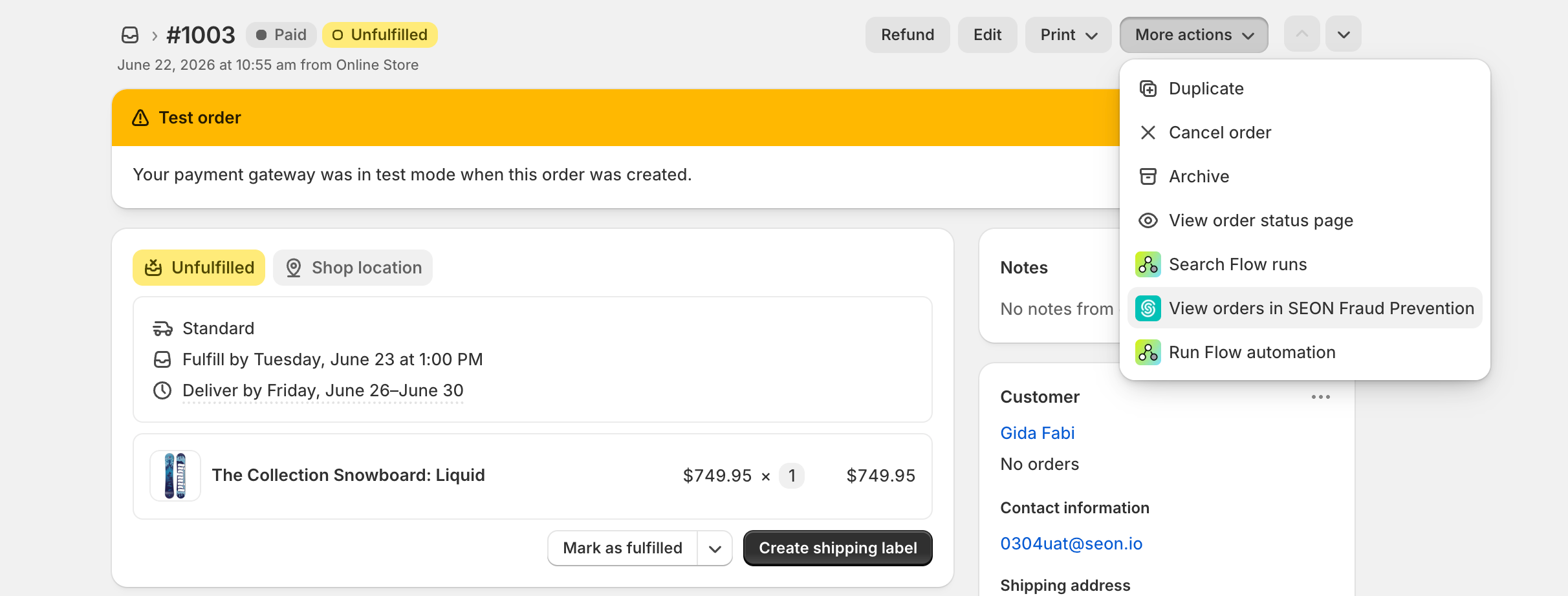
You can also access the SEON Admin Panel directly from any order in Shopify: on the order detail page, click More actions – View orders in SEON Fraud Prevention. This redirects you to the SEON Admin Panel.
Updating order states
You can manually change an order’s fraud state in the SEON Admin Panel at any time. When you do:
- The order risk level on the Shopify order detail page is updated
- The SEON state order tag is replaced (e.g., seon_review ? seon_manual_approved)
- If Automation Rules are configured for the new state (e.g., capture payment on Approve), those actions will also be triggered