


Quick Start Guide

Updated on 22.06.26

1 minute to read

Copy link
Overview
Install and connect SEON Fraud Prevention to your Shopify store. This guide covers installation, account setup, and first steps.
Step 1: Install the SEON Shopify App
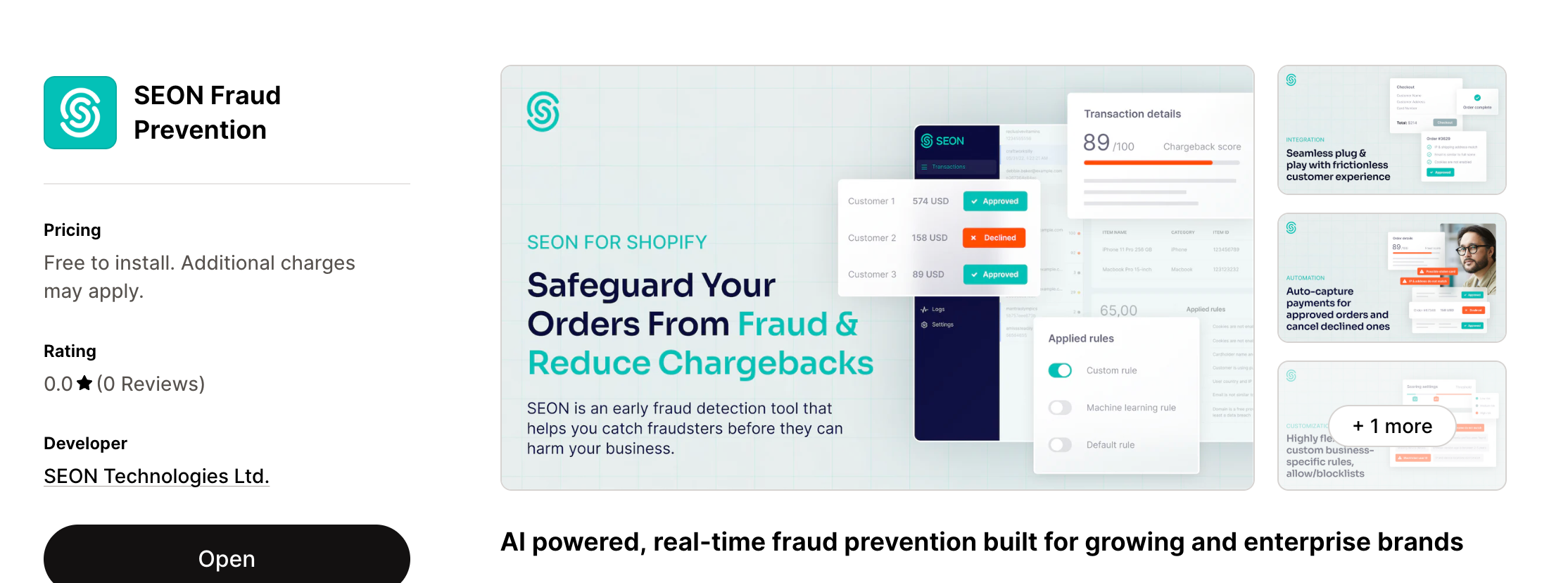
- Search for SEON Fraud Prevention in the Shopify App Store, or visit the app listing directly.
- Click Install.
- Log in to your Shopify account if prompted.
- Complete the installation by clicking Install app.
Step 2: Create or link your SEON account
After installation, you’ll see a Welcome screen where you choose to create a new account or link an existing one.

Option A: Create a new account
If you’re new to SEON, you’ll create a fresh account directly from the app:
- Enter the following information:
- First Name and Last Name
- Company Name
- Region — Select where your data will be stored. This is a one-time selection and cannot be changed after account creation. Choose US (United States), EU (Europe) or AP (Asia-Pacific)
- Password
- Accept the Privacy Policy and Terms and Conditions checkbox.
- Click Create Account.
After account creation, a free trial is activated. During this period, all incoming orders will be automatically checked for fraud. After the trial expires, fraud evaluation will stop unless you set up a paid plan with SEON.
Option B: Link an existing account
If you already have a SEON account:
- Select Link Existing Account.
- Enter your email address and License Key. You can find your license key in your SEON Admin Panel under Settings.
- Click Connect.
Step 3: Enable device fingerprinting
Device fingerprinting is a critical layer of SEON’s fraud detection. For theme storefronts (Online Store 2.0 / Liquid), you need to enable the SEON App Embed — no coding required:
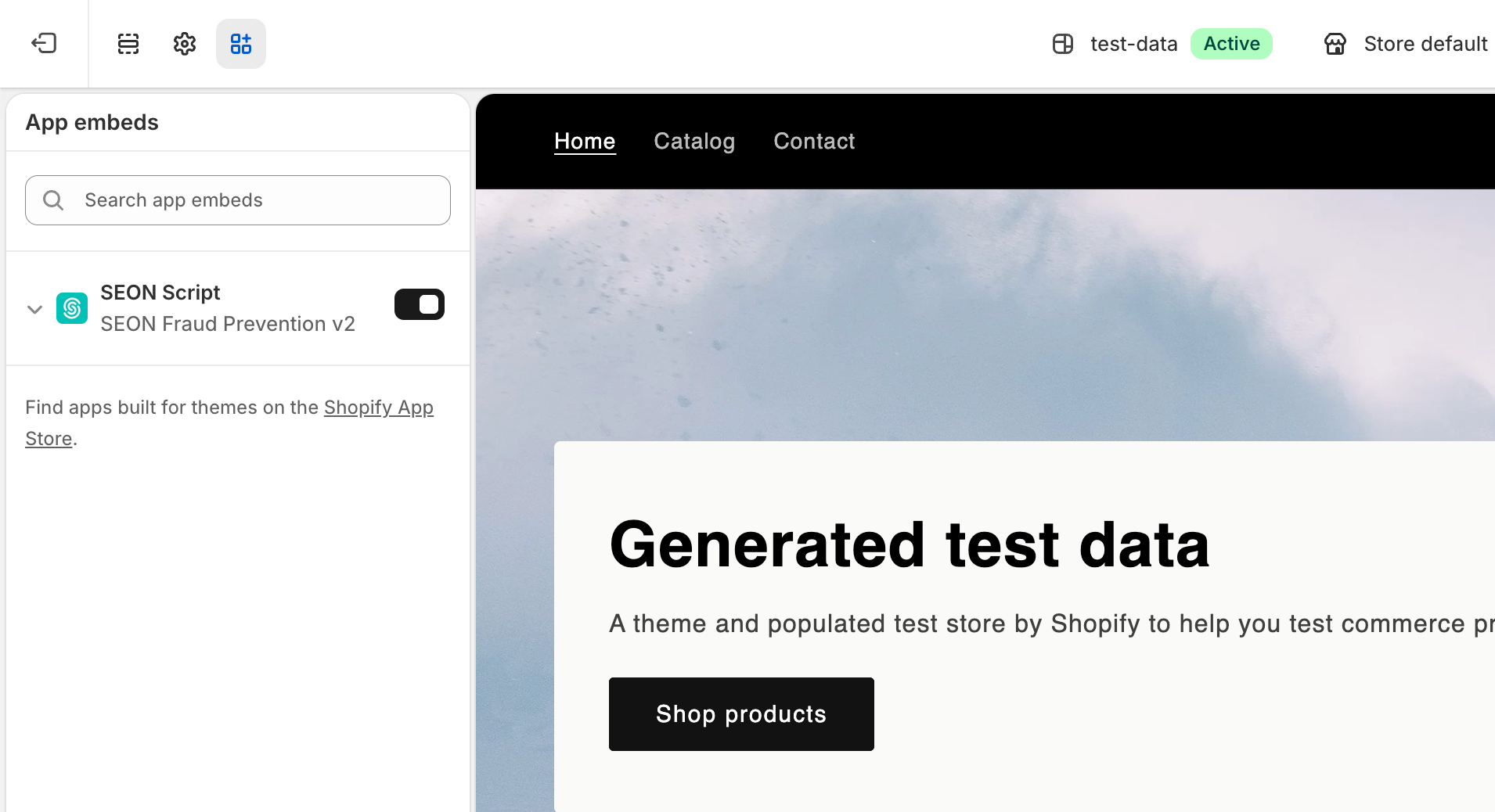
- Go to Online Store - Themes in your Shopify admin.
- Click Customize on your active theme.
- In the Theme Editor, navigate to App embeds (in the left sidebar).
- Find SEON Script and toggle it on.
- Click Save.

Step 4: You’re all set
Once onboarding is complete, you’ll be redirected to the SEON for Shopify dashboard. From this point forward, every incoming order with a successful transaction will be automatically checked by SEON for fraud and scored in real time.
Meet your SEON for Shopify app
The app has three main navigation sections:
Dashboard
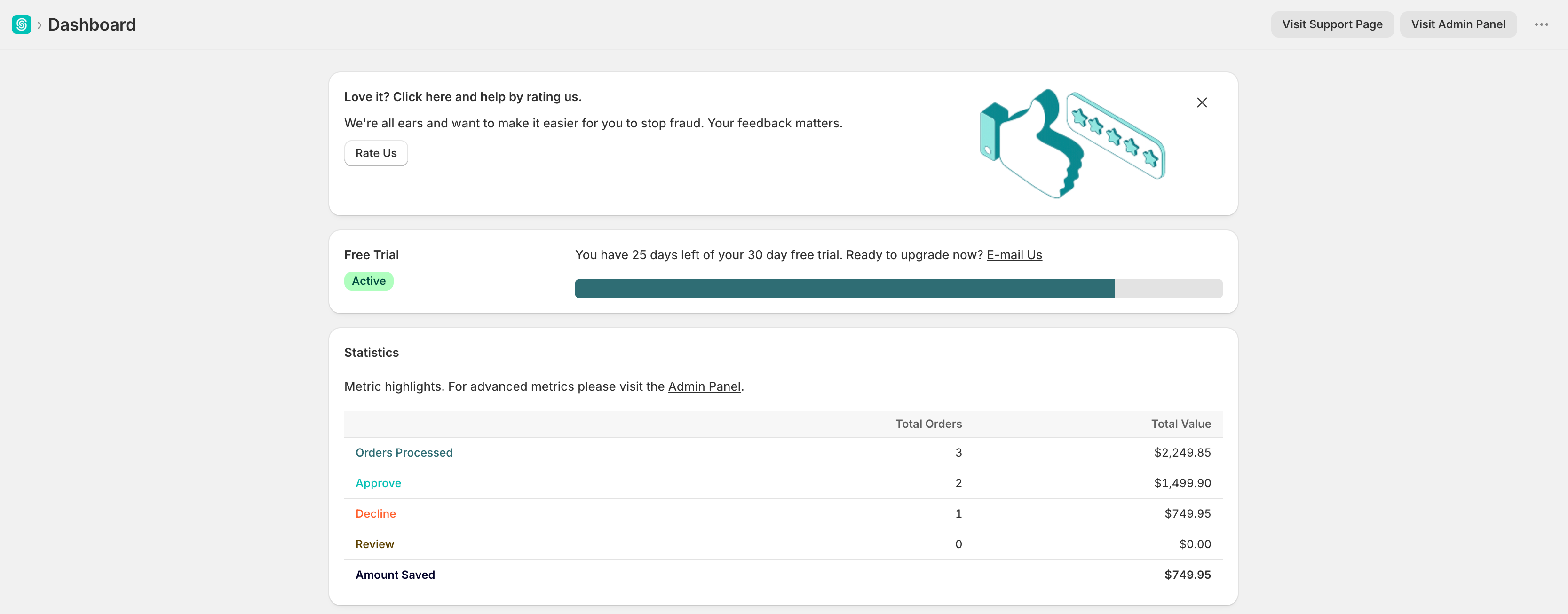
Your home screen showing key fraud prevention statistics, account status, and quick links to the SEON Admin Panel.
Settings

The central configuration hub where you control:
- Scoring Thresholds — Set your risk tolerance levels
- Automation Rules — Configure automatic actions per fraud state
- Fraud API Configuration — Toggle individual verification modules
- Chargeback Settings — Manage Chargeflow integration
- Webhook Management — Create and manage custom webhooks
- AI Insights — Link to fine-tune the AI scoring engine
Support
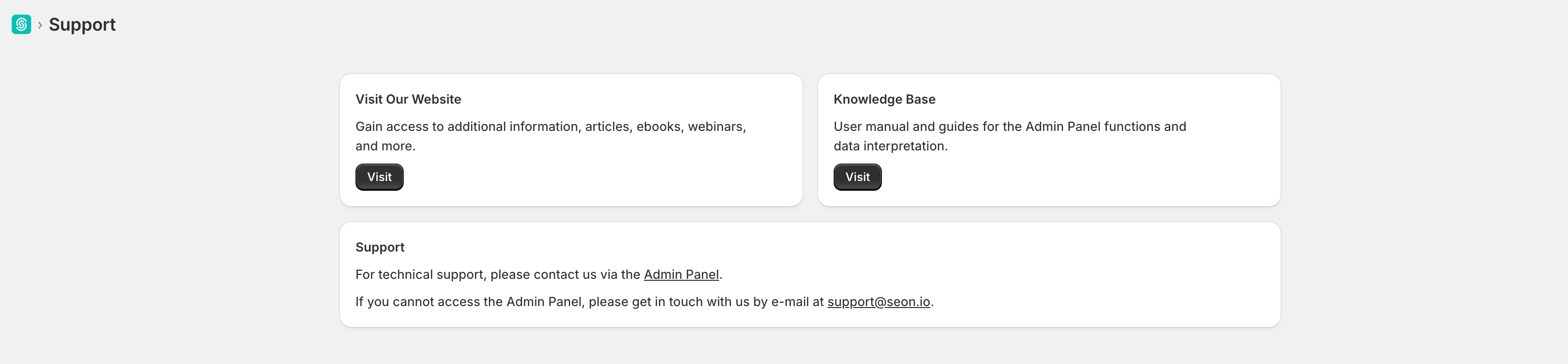
Access documentation, the knowledge base, and contact support directly from the app.
SEON Admin Panel (external)
The full SEON platform, accessible via the Visit Admin Panel button on the Dashboard (opens in a new tab). Use it for advanced features including:
- Transactions — View all checked orders with detailed fraud analysis
- Scoring Engine — Create and manage custom fraud rules
- List Management — Manage blacklists, whitelists, and flagged values
- Notifications — Configure alert preferences
How SEON for Shopify works
SEON integrates with your Shopify store at the order and transaction level:
- A customer places an order in your store.
- Once a successful transaction is created, Shopify sends the order, transaction, and customer data to SEON.
- SEON performs a real-time fraud analysis using data enrichment, digital footprint analysis, device fingerprinting, and machine learning-powered risk scoring.
- Each order receives a fraud score (0–100) and a SEON State (APPROVE, REVIEW, or DECLINE) based on your configured scoring thresholds and rules.
- Based on your Automation Rules, SEON can automatically capture payment, hold fulfillment, cancel the order, and/or apply tags.
- Results are synced back to Shopify and visible on the order details page.

Next steps
- Customize your scoring thresholds to match your risk appetite
- Set up Automation Rules to automatically handle orders based on fraud state
- Configure Fraud API settings to enable or disable specific verification modules
- Explore the SEON Admin Panel for advanced rules, lists, and analytics